
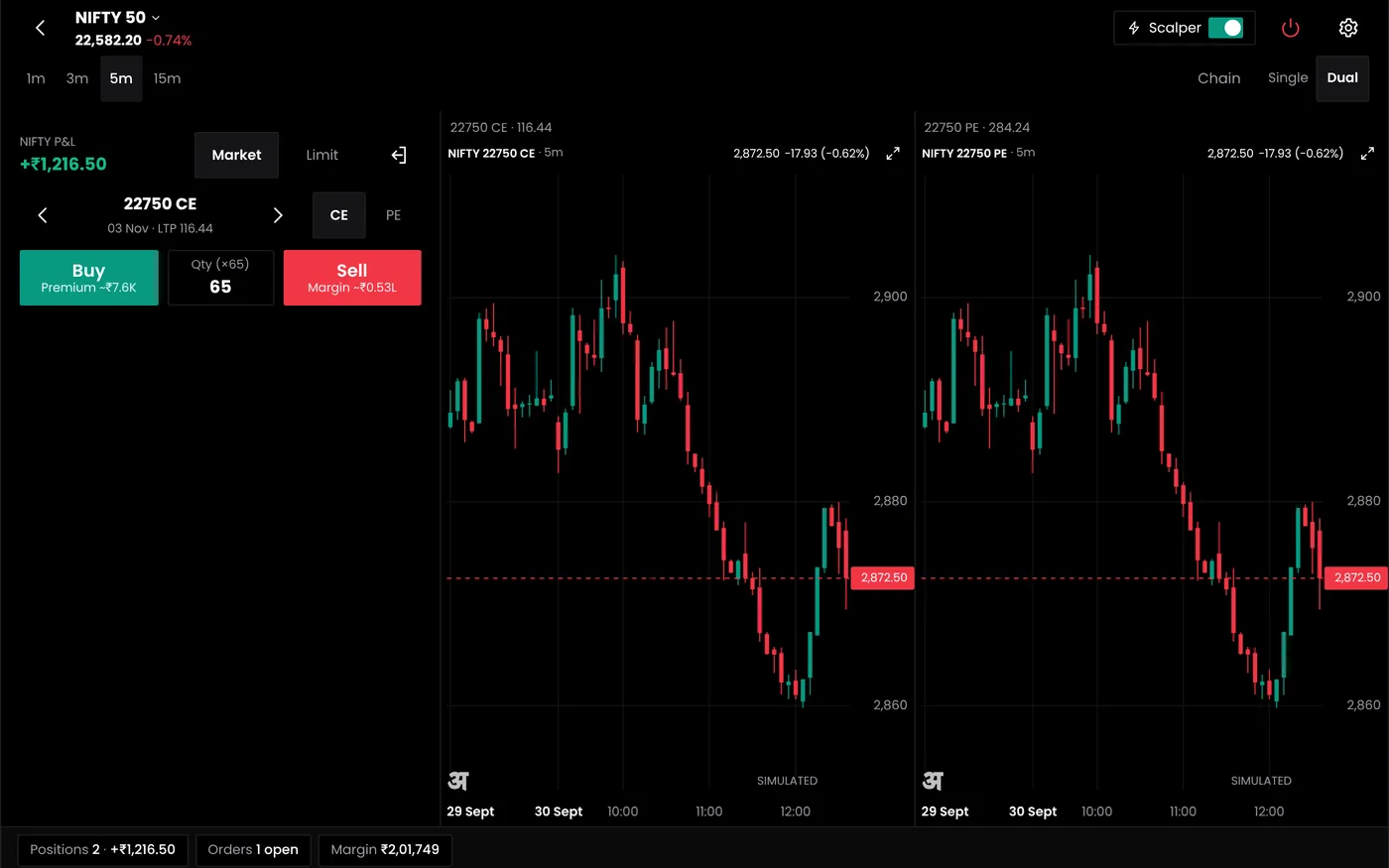
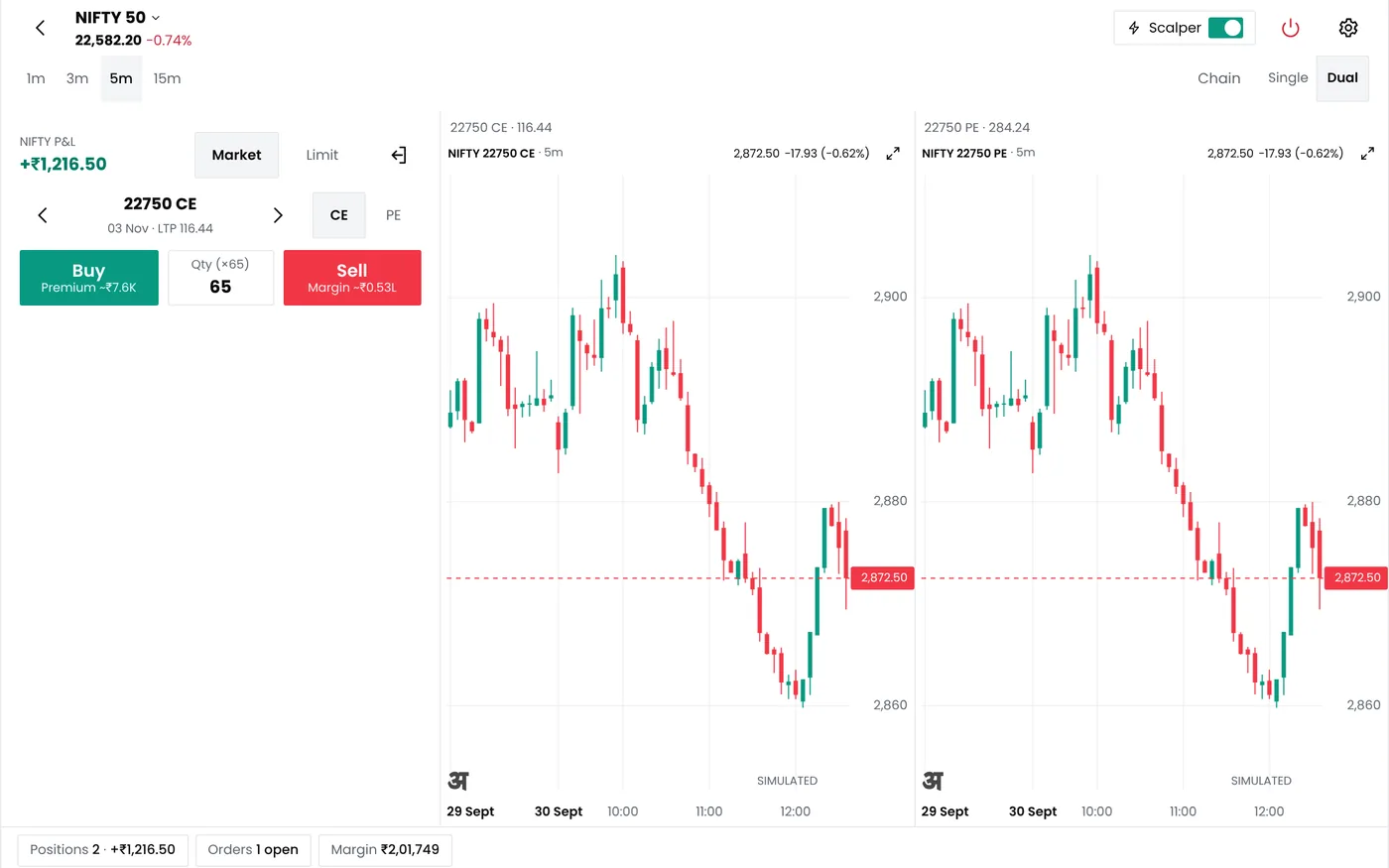
What the terminal shows
| Panel | What it does |
|---|---|
| Charts | Price charts with timeframes from one minute to daily, and several charts side by side |
| Option chain | Prices, IV, Greeks and open interest for each strike, with buy and sell from the chain |
| Order ticket | Buy or sell, the instrument, lots or quantity, and the order type |
| Order book | Every order with its status, fill price, time and any rejection reason |
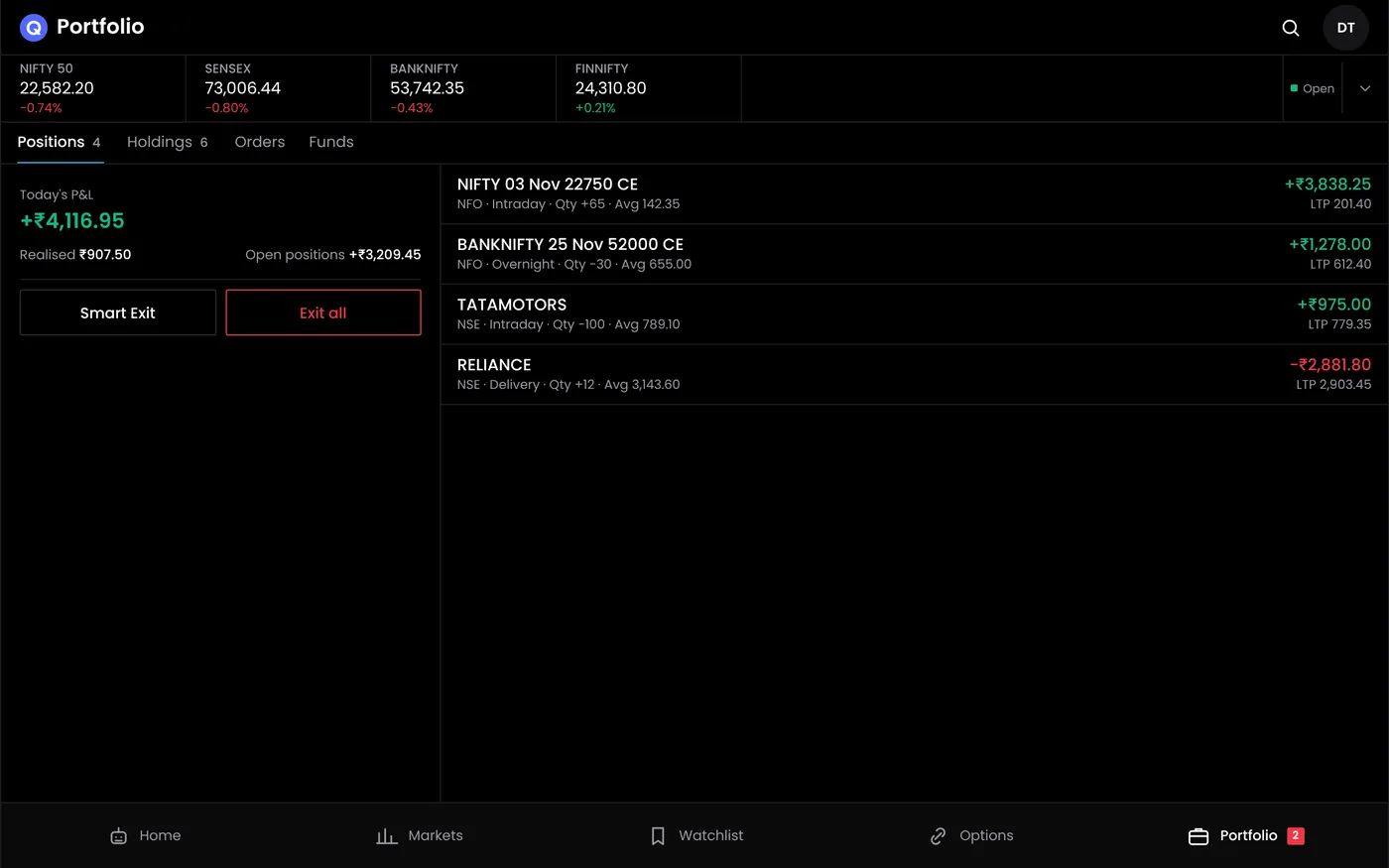
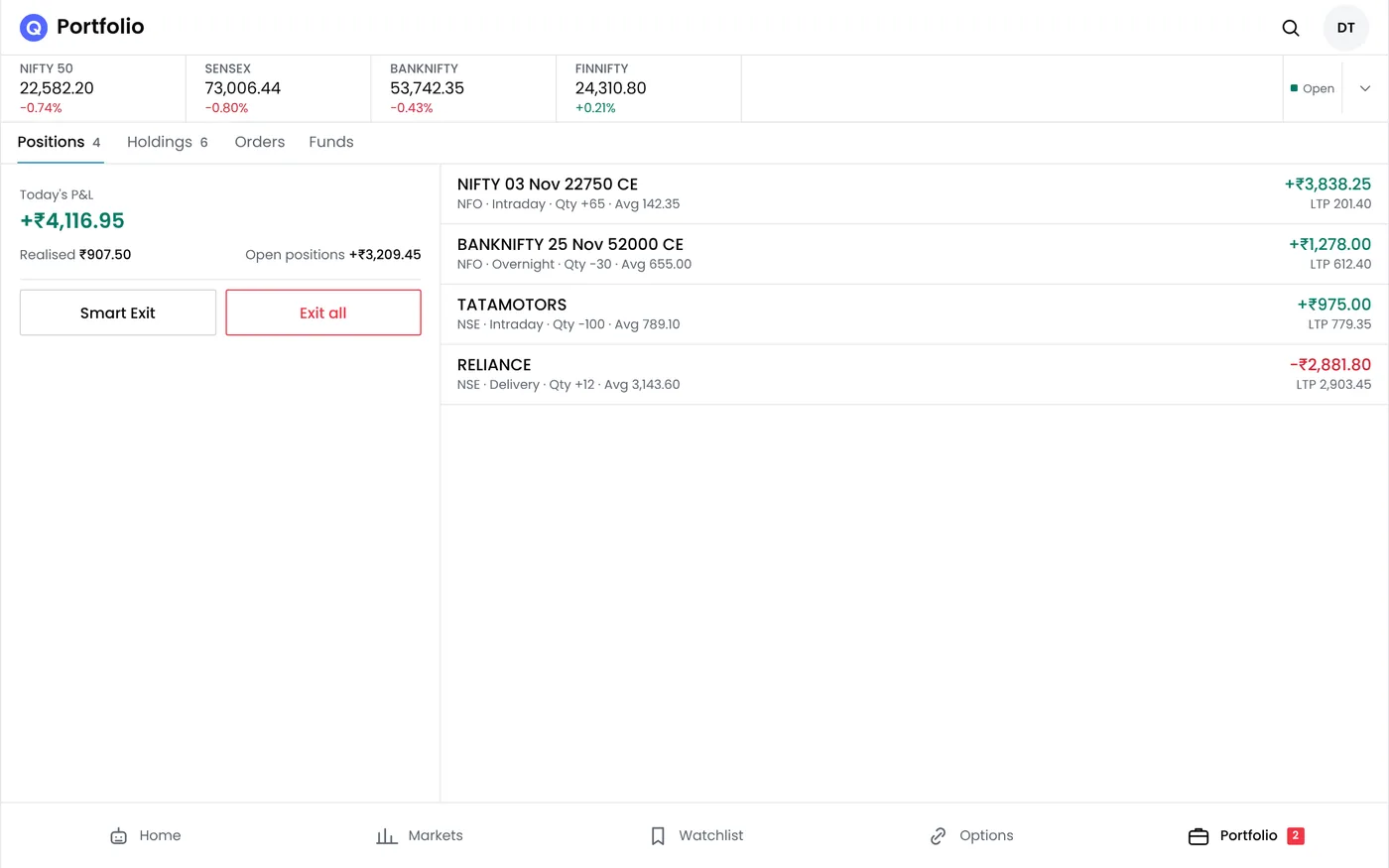
| Positions | Open positions with live P&L, and exits in one click |
| MTM | The day's combined profit and loss against your daily limit |
Order types
| Order | Use |
|---|---|
| Limit | Buy or sell at your price or better; the default for options |
| Market | Fill at once at the best available price; use with care in thin strikes |
| Stop loss (SL) | A limit order sent when a trigger price is reached; used for options, where NSE does not accept SL-M |
| Stop loss market (SL-M) | A market order sent at the trigger; for futures and shares |
| Iceberg | A large order split into smaller slices, shown one at a time |
Orders above the exchange's freeze quantity for a contract cannot be placed in one piece. The terminal splits them with an iceberg order so they are not rejected for size.
Trading options from the terminal
- Open the chain for the index or stock and the expiry you want.
- Pick the strike by price, delta or open interest.
- Tap buy or sell to fill the order ticket with the contract.
- Set lots and the limit price, and add a stop loss order if you want one.
- Place the order and watch it in the order book.
- Follow the position with live P&L, and exit from the positions panel.
For multi-leg trades, add the legs to a basket and open it in the option strategy builder to see the payoff and margin before placing the orders. The chain itself is described on the option trading app page.
Several charts at once
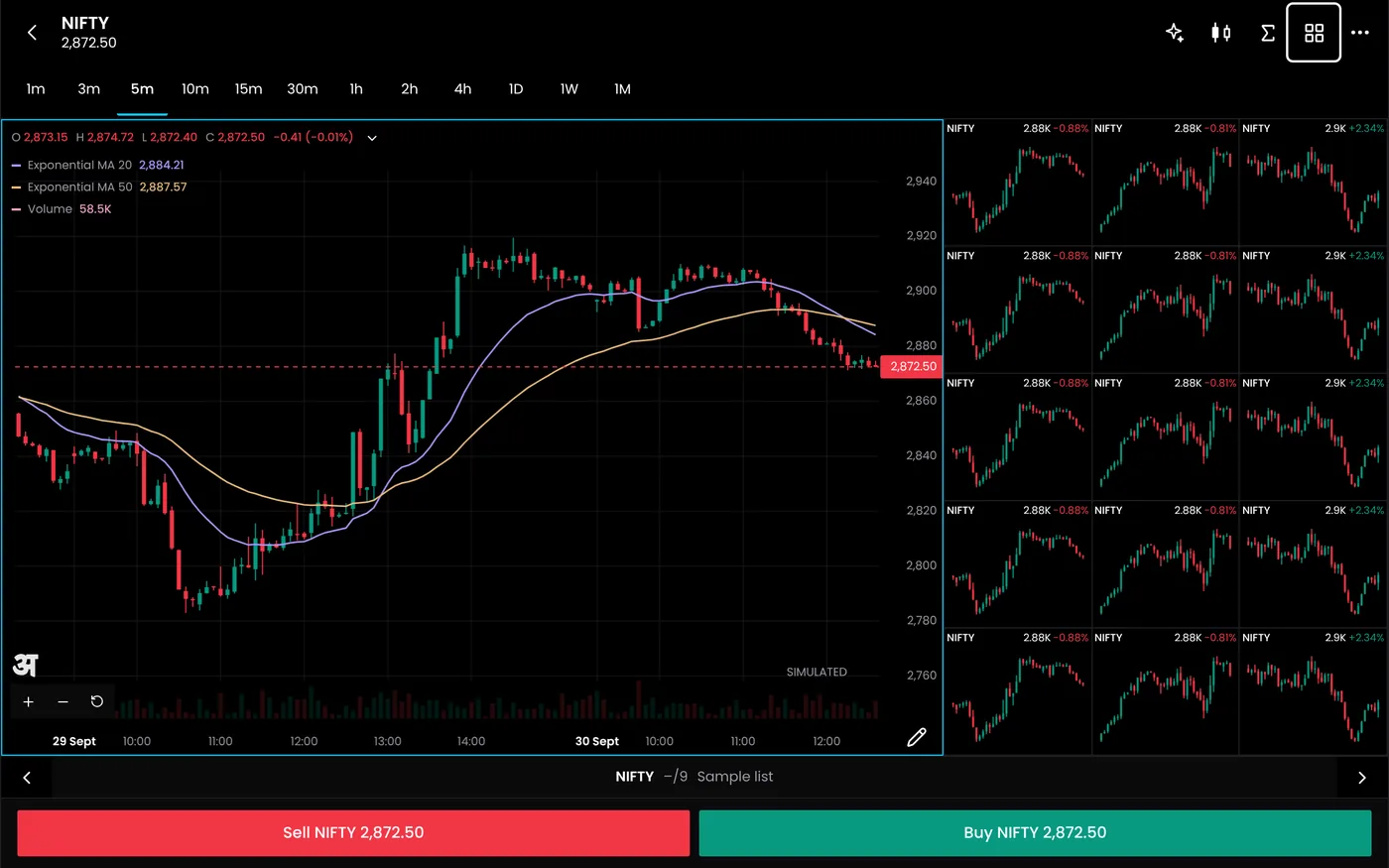
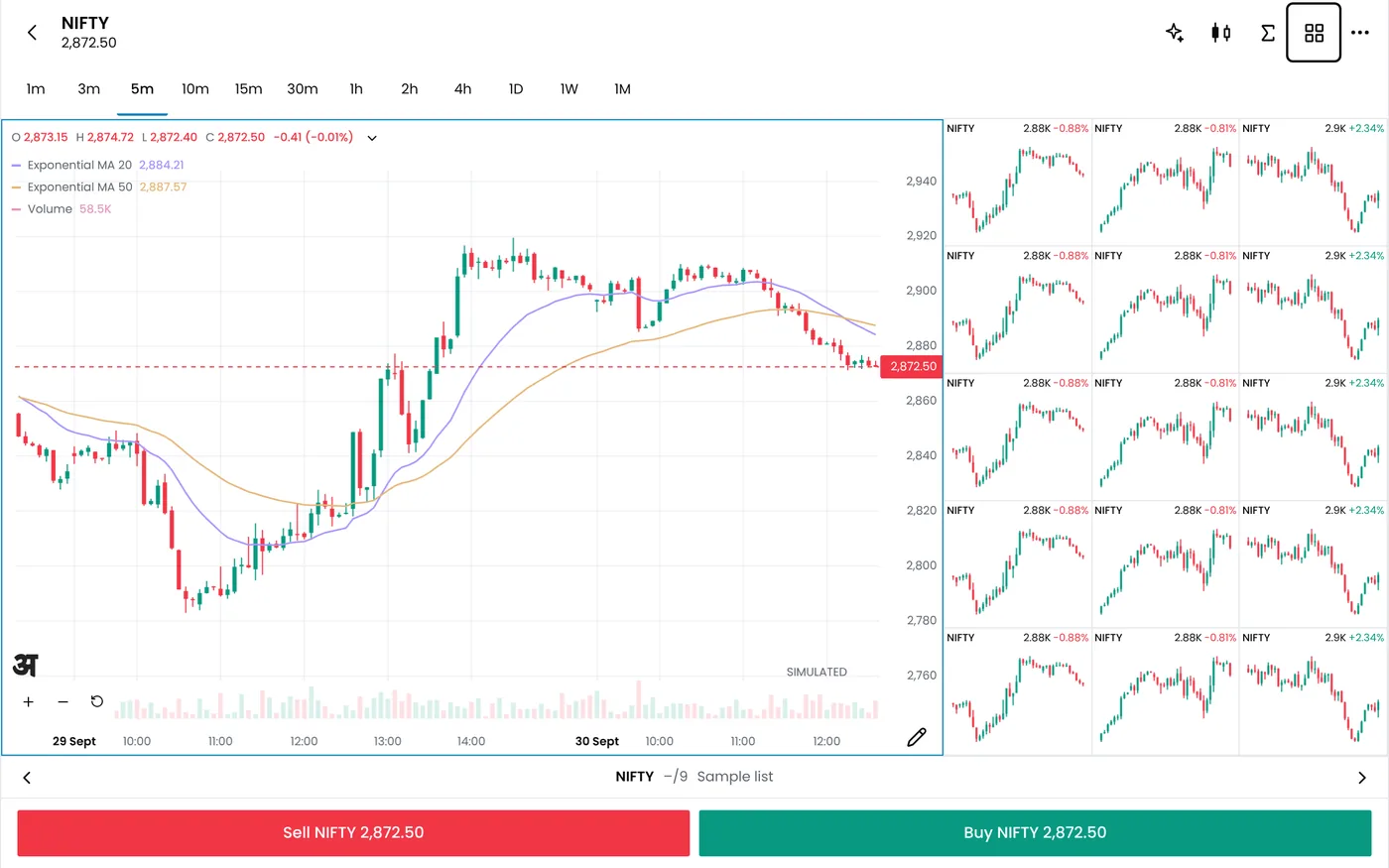
The terminal can show several charts side by side: Nifty, Bank Nifty and a few stocks, or one instrument on several timeframes. Traders use it to watch the index while trading its options, or to compare a stock with its sector.
Manual and automated trades together
Bots and signals place orders through the same broker connection, so their orders and positions appear in the terminal next to your manual ones. You can watch a bot trade, exit one of its positions by hand, or pause all automation from the same screen. The daily MTM limit covers the combined P&L of every position, however it was opened. The guide on how to place stop loss order limits across all positions explains the setup.
Order rejections and what they mean
The order book shows the reason for each rejected order, as sent by the broker or the exchange.
| Reason | What it means | What to do |
|---|---|---|
| Insufficient margin | The account cannot cover the order's margin or premium | Add funds, reduce lots, or place the hedge leg first |
| Price outside the band | The limit price is beyond the exchange's allowed range | Set a price closer to the market |
| Quantity above freeze limit | The order is larger than the exchange allows in one piece | Use an iceberg order |
| Market closed | The order was sent outside trading hours | Place it in the session, or as an AMO where allowed |
| Session expired | The broker login has lapsed | Log in to the broker again |
Devices
The terminal runs in Chrome, Edge, Firefox and Safari on a computer, and in the QuantPower Android app. On an iPhone, use the web platform in Safari. The layout adapts to the screen, with the chart and positions first on a phone.
Brokers and data
The terminal connects 100+ Indian brokers, including Wisdom Capital, Zerodha, Upstox, Fyers and IIFL Capital. You log in on your broker's own page; QuantPower stores only the session token. Live prices come through your broker's API; Zerodha charges ₹500 a month for Kite Connect, which Zerodha users need for live data in any third-party platform.
A trading day in the terminal
- Before the open: log in to the broker, check free margin, set the daily MTM limit, and mark the levels you watch on the charts.
- At the open: watch the first candles and the option chain's IV and change in OI.
- During the session: place trades from the chain or the ticket, with stops attached, and follow them in the positions panel.
- Into the close: exit intraday positions before the broker's square-off time, and review the order book.
- After the close: check the day's P&L and the trades in the performance screen.
Live trading terminal vs your broker's app
| Need | Broker app | QuantPower terminal |
|---|---|---|
| Place and track orders | Yes | Yes |
| Greeks, IV and OI on every strike | Varies by broker | Yes |
| Payoff and margin before a multi-leg order | Varies by broker | Yes, through the strategy builder |
| One daily loss limit for all positions | Rarely | Verify final plan allowances against your needs |
| Manual and automated trades in one place | No | Yes |
| The same screen across brokers | No | Yes |
Checks before you place an order
- Product type. Choose intraday (MIS) for positions you will close the same day and carry forward (NRML) for positions you hold; brokers square off intraday positions before the close.
- Margin. Check free margin, especially for sold options and on expiry day, when short index options carry an extra 2% exposure margin.
- Spread. On option strikes away from the money, compare the bid and ask before choosing a limit price.
- Size. Confirm the lots and the lot size: one Nifty lot is 65 units.
- Exit. Decide the stop and target before the order, and place the stop as soon as the order fills.
These checks take seconds and prevent most rejected orders and unplanned losses. The F&O margin calculator estimates margin before you trade.
Watchlists and alerts
Keep the instruments you trade in a watchlist with live prices and the day's change, and set price alerts on levels you do not want to watch all day. An alert notifies you on the web platform and in the app; turning it into an automatic order is the job of signal trading.
Who the terminal suits
- Manual option traders who want the chain, Greeks and orders together instead of switching between a charting site and a broker app.
- Traders running bots who want to see automated and manual positions in one place, and step in by hand when needed.
- Traders with more than one strategy who want one daily loss limit across all of them.
- Traders who change brokers and want the same screens whichever broker they use.
- New traders who want to learn order types and position management with paper trading before using real money.
Plans
The live trading terminal, with charts, the option chain, the order book and positions, is part of every plan. The QuantPower Standard plan is free during the Beta (₹299/month after); Professional is ₹499/month and Ultimate ₹999/month, GST extra. See pricing.
Related guides
- Option trading app: the chain with live Greeks, IV and open interest
- Order types: each order type and when it fills
- Multiple charts: several charts on one screen
- Position monitoring: open positions and P&L in one view
- How to place stop loss order: a daily loss limit across all positions
- Option strategy builder: entry, exit and stop rules on the same legs
Start your free trial
Connect your broker, build a strategy and test it on paper before a single live order goes out.
Frequently asked questions
Does the terminal place orders on my own broker account?
Yes. Every order goes to your connected broker account. QuantPower never holds your money.
Which order types can I place?
Limit, market, stop loss, stop loss market (for futures and shares) and iceberg orders.
Can I trade options from the option chain?
Yes. Tap a price on the chain to fill the order ticket with that contract, then set lots and the limit price.
Can I see my bots' trades in the terminal?
Yes. Orders and positions from bots and signals appear with your manual trades, and you can exit them by hand.
Is there an iPhone app?
No. On an iPhone, use the web platform in Safari. There is an Android app.
Why was my order rejected?
The order book shows the reason. The most common are insufficient margin, a price outside the band, a quantity above the freeze limit and an expired broker session.
Sources
- QuantPower plans and features as listed on the live pricing page (checked 11 October 2026)
- NSE: order types in the equity derivatives segment, including the discontinuation of SL-M orders for options
- Zerodha Kite Connect: API pricing (checked 10 October 2026)