
What market alerts can watch
| Alert on | Example | Good for |
|---|---|---|
| Price level | Nifty crosses above 25,100 | Breakouts, support levels and the stop you want to watch |
| Open interest | Open interest in Nifty futures rises above a level you set | Signs that new positions are building up |
| Indicator condition | A stock's RSI (14) drops below 30 on 15-minute candles | Indicator set-ups you want to judge by hand |
| Option premium | The Nifty 25,000 call trades above ₹320 | Premiums on positions you hold or plan to trade |
| Percentage move | Reliance moves 3% from the previous close | Unusual moves in stocks you hold or watch |
You can set alerts on indices, stocks, futures and options. Conditions can be a price level, a percentage move, an indicator condition such as RSI or a moving average, or an open interest level.
How alerts reach you
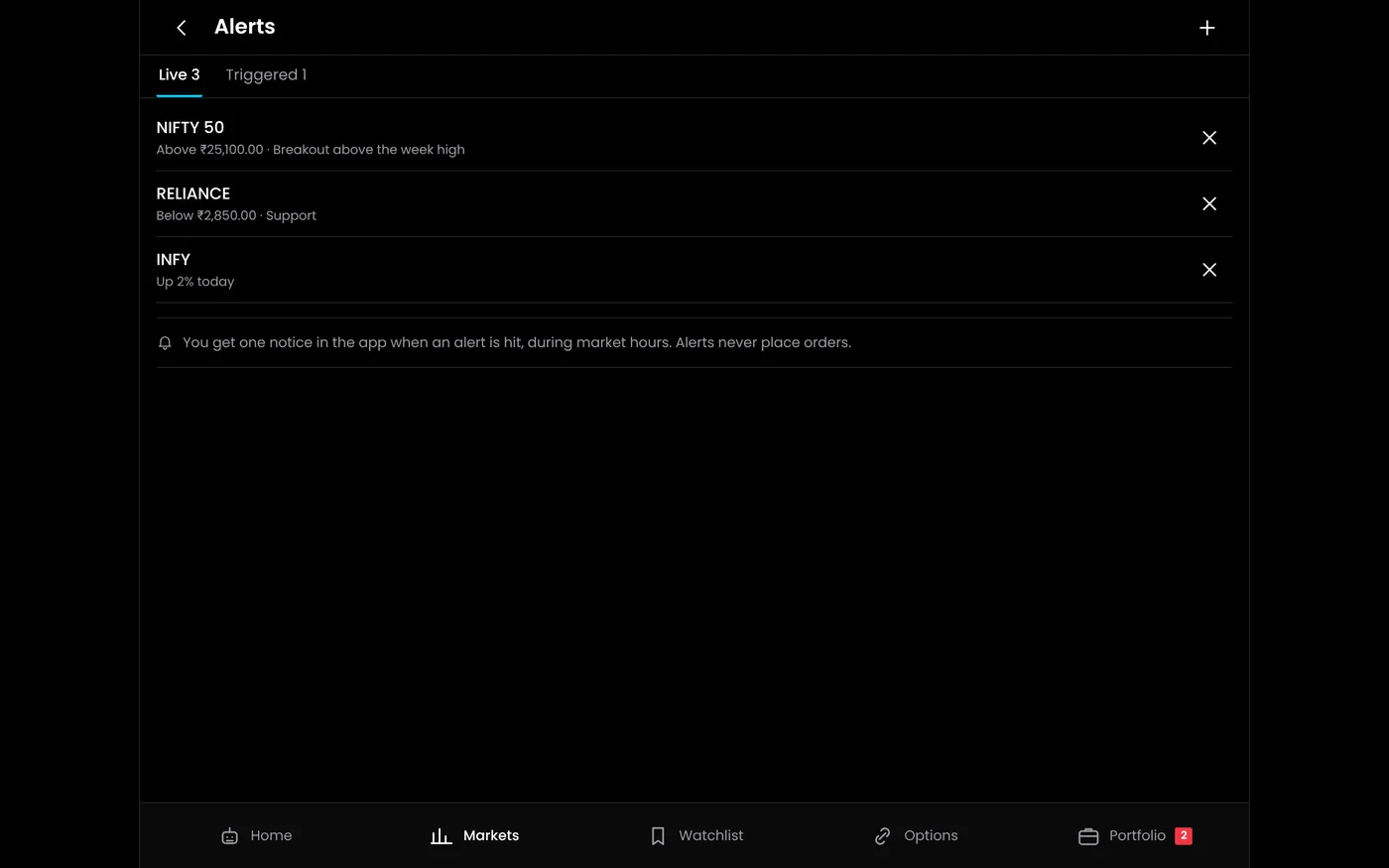
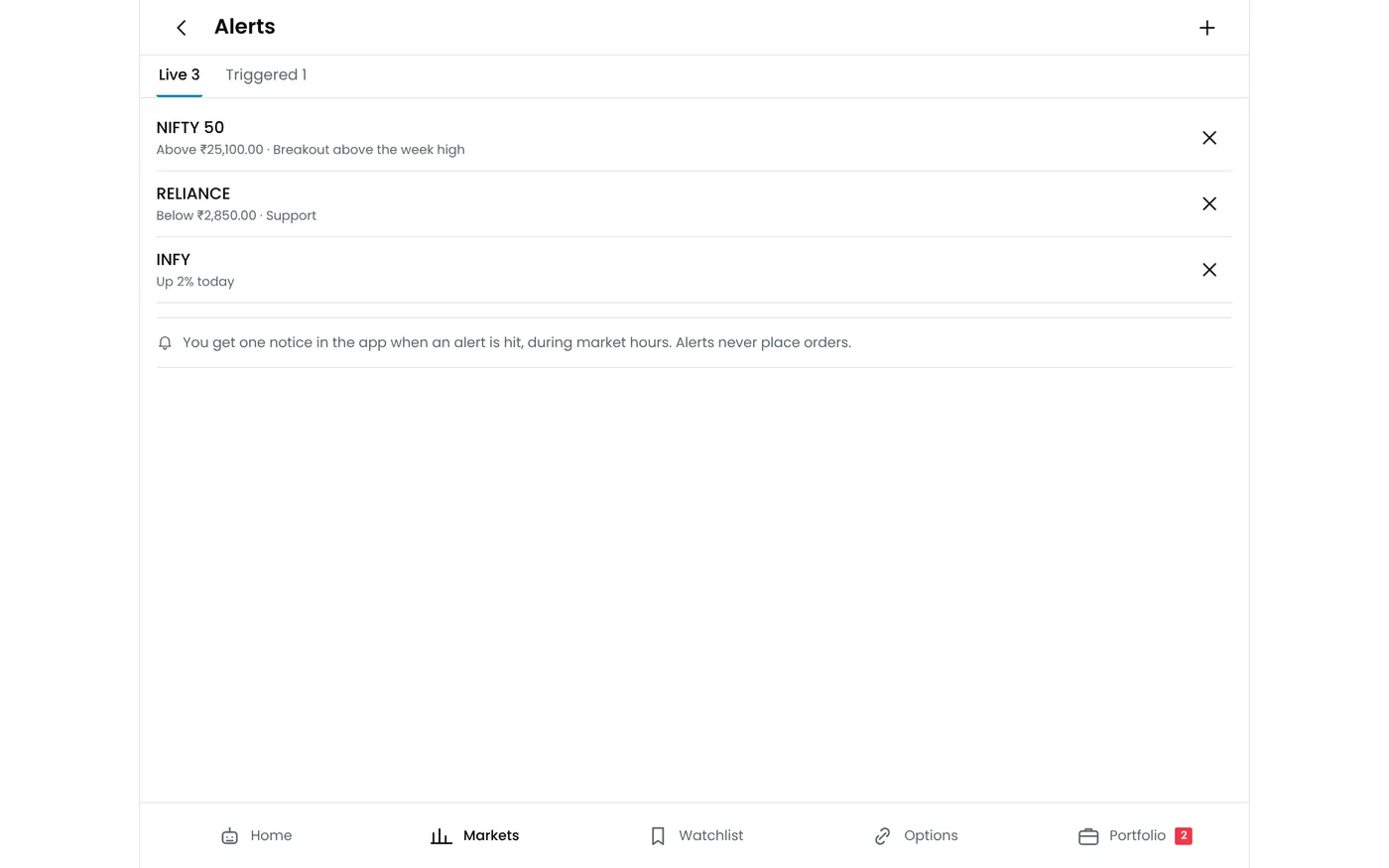
When an alert triggers, it shows on the web platform and as a notification in the QuantPower app for Android. Alerts are not sent by SMS. On an iPhone, use the web platform.
QuantPower runs on your own computer or VPS and checks active alerts against live prices from your connected broker account. Under SEBI's rules for API access, broker sessions end before each trading day, so log in to your broker each morning to keep prices flowing. Alerts use your broker's live data, so they trigger only on days you have logged in to your broker.
To get alerts on your phone reliably:
- Allow notifications for the QuantPower app in your phone's settings.
- Exclude the app from battery optimisation, which can delay or block notifications.
- Stay connected. An alert cannot reach a phone that is offline.
Alert ideas for traders
Good alerts come from your own trading plan. These are common starting points, grouped by the kind of trading they suit:
| Trader | Alert | Why it helps |
|---|---|---|
| Intraday index trader | Nifty crosses the previous day's high or low | A test of yesterday's range often sets the tone for the morning |
| Intraday index trader | Bank Nifty moves 1% from the previous close | A sign that the day may trend rather than range |
| Option seller | The index comes within 100 points of a short strike | Time to review the position before the strike is tested |
| Option seller | A short option's premium doubles from the entry price | A common point at which sellers review or exit |
| Option buyer | The premium falls to the level where your trade idea is wrong | A prompt to take the exit you planned |
| Futures trader | Price crosses the day's pivot or the top of the central pivot range | Levels many intraday traders watch |
| Swing trader | A stock crosses the breakout level in your plan | You see the move without checking the chart all day |
| Investor | A stock or ETF you hold falls 5% in a day | A prompt to check the news before deciding anything |
Pivot levels and the central pivot range come from the previous day's high, low and close, so they can be set before the open. Our tutorial on how to create a market alert shows the settings, and the stock scanner finds instruments worth an alert in the first place.
Setting alerts that help rather than distract
- Tie each alert to an action. Decide in advance what you will do when it triggers: enter, exit, reduce, or just look at the chart.
- Keep the list short. Ten alerts you act on are better than fifty you dismiss.
- Use crossing conditions for levels. A "crosses above" alert triggers on the move through the level, not on every price above it.
- Let indicator alerts use closed candles. An indicator's value changes until the candle closes, so a reading in the middle of a candle can disappear by its close.
- Alert ahead of the level. For a stop you want to watch, an alert a little before the stop gives you time to act.
- Clear old alerts. Delete alerts when your plan changes, and review the day's triggered alerts after the close.
What alerts cannot do
- They do not place orders. You act on an alert yourself.
- They are not stop losses. If you miss an alert, nothing happens to your position. A stop-loss order with your broker, or a daily MTM limit, protects a position while you are away.
- They depend on data and the network. An alert can arrive late in a fast market, or not at all if the broker session or the phone's connection drops.
- They need the market to move. Prices do not change outside market hours, so alerts wait for the next session.
When to automate instead
An alert leaves the decision to you, which suits levels you judge case by case. If you would place the same order every time a condition is met, the rule can be automated instead. Signal trading turns indicator conditions and TradingView alerts into orders on your broker account, and the option strategy builder sets up complete strategies, with entries, exits and stops, for algo bots to run. Test any automated rule in paper trading before it trades real money.
| Market alert | Automated rule | |
|---|---|---|
| Places an order | No | Yes, on your broker account |
| Needs you to act | Yes | No, but you should monitor it |
| Suits | Levels you judge case by case | Rules you follow the same way every time |
Plans
The QuantPower Standard plan is free during the Beta (₹299/month after); Professional is ₹499/month and Ultimate ₹999/month, GST extra. See pricing. Every plan starts with a free trial.
Related guides
- How to create a market alert: the settings, step by step
- Stock scanner: find set-ups worth an alert
- Signal trading: conditions and TradingView alerts turned into orders
- Multiple charts: mark the levels you alert on
- Nifty pivot points: daily levels to alert on
Start your free trial
Connect your broker, build a strategy and test it on paper before a single live order goes out.
Frequently asked questions
Is a market alert the same as a stop loss?
No. An alert only notifies you. A stop-loss order sits with your broker and exits the position even if you miss the alert.
Do I need an open position to set an alert?
No. Alerts watch prices, not positions, so you can set them on instruments you are only following.
Do alerts trigger when the market is closed?
No. Prices do not change outside market hours, so alerts wait for the next session.
Why did my alert arrive late?
Fast markets, a weak phone connection and battery-saving settings can all delay a notification, and indicator alerts may wait for the candle to close. Allow notifications for the app and exclude it from battery optimisation.
How many alerts should I keep active?
As many as you will act on. A short list tied to your trading plan works better than dozens of alerts that are easy to ignore.
Do alerts need my broker to be connected?
Alerts use live prices from your connected broker account, so keep the connection active and log in to your broker each trading day.
Sources
- QuantPower features and plans as listed on quantpower.tech (checked 20 October 2026)
- QuantPower app on Google Play (com.quantpower)
- SEBI: safer participation of retail investors in algorithmic trading, 4 February 2025