
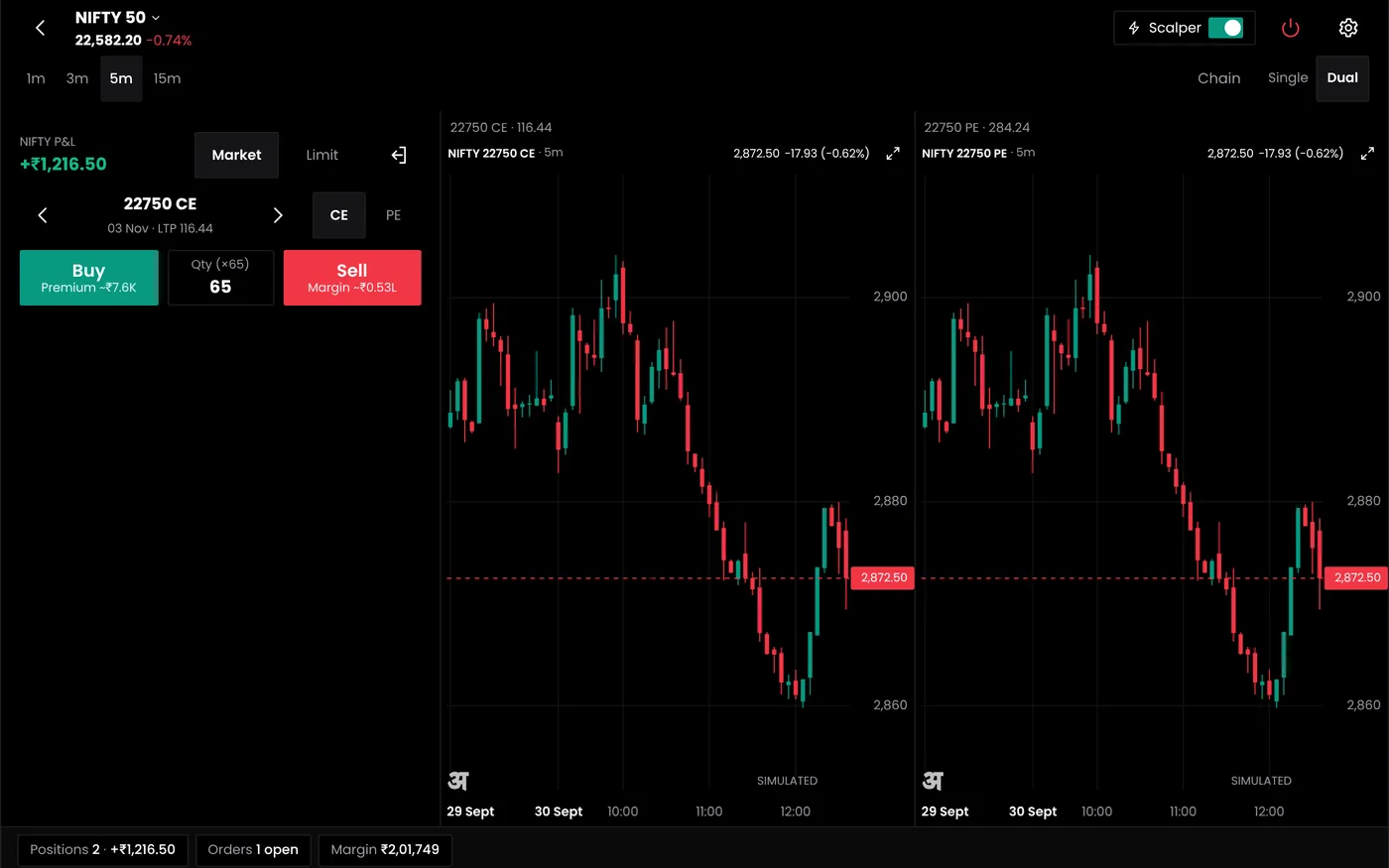
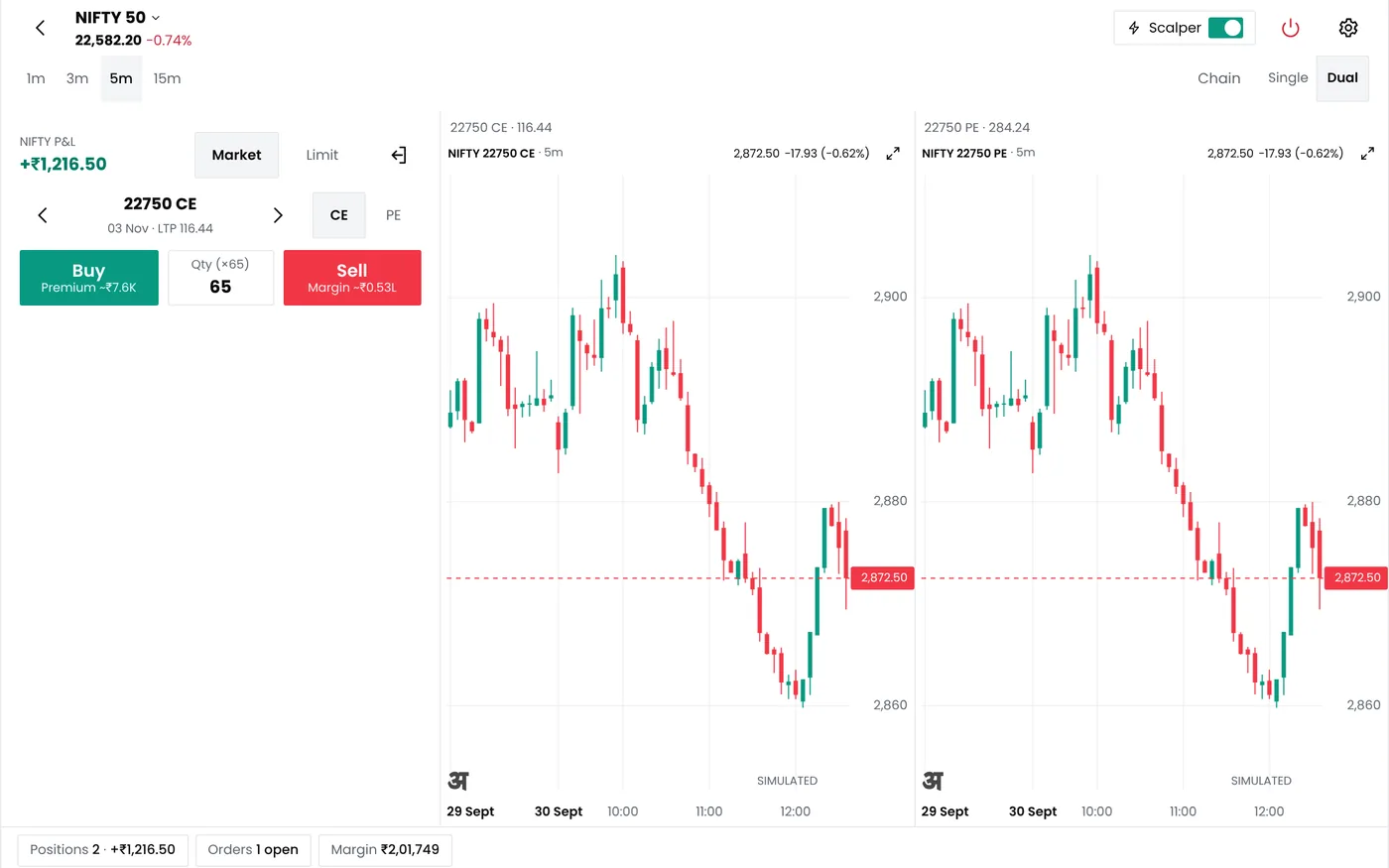
What the order book shows
| Field | What it tells you |
|---|---|
| Time | When the order was placed and last updated |
| Instrument and side | What was bought or sold |
| Order type | Limit, market, stop loss, or a slice of an iceberg order |
| Strategy | For orders from your own algo bots, the name of the strategy that placed them |
| Quantity | Ordered and filled, in units |
| Price | Your limit or trigger price, and the average fill price |
| Status | Where the order stands now |
| Reason | Why a rejected order was refused |
| Order ID | The broker's reference, to match the order in your broker's app |
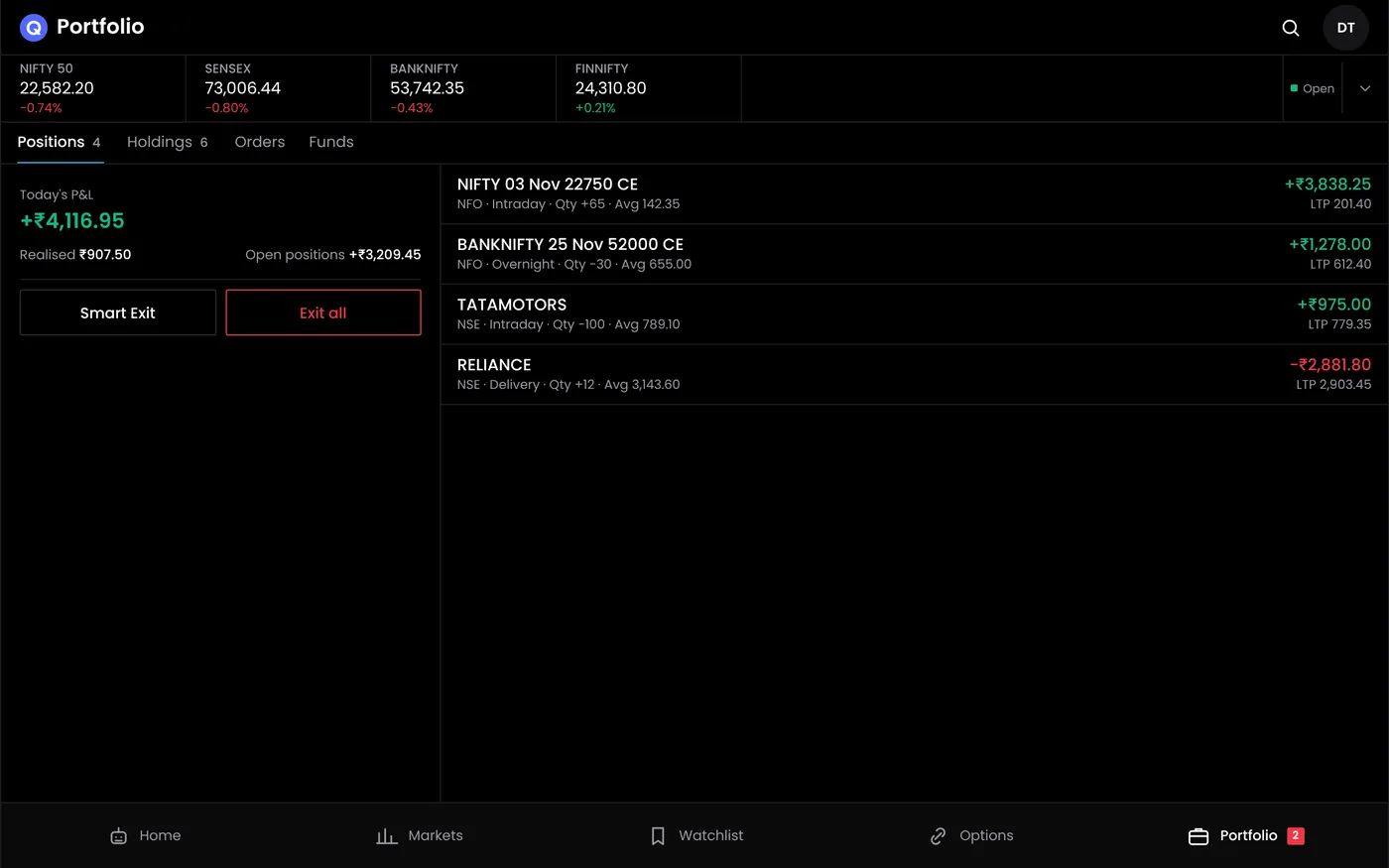
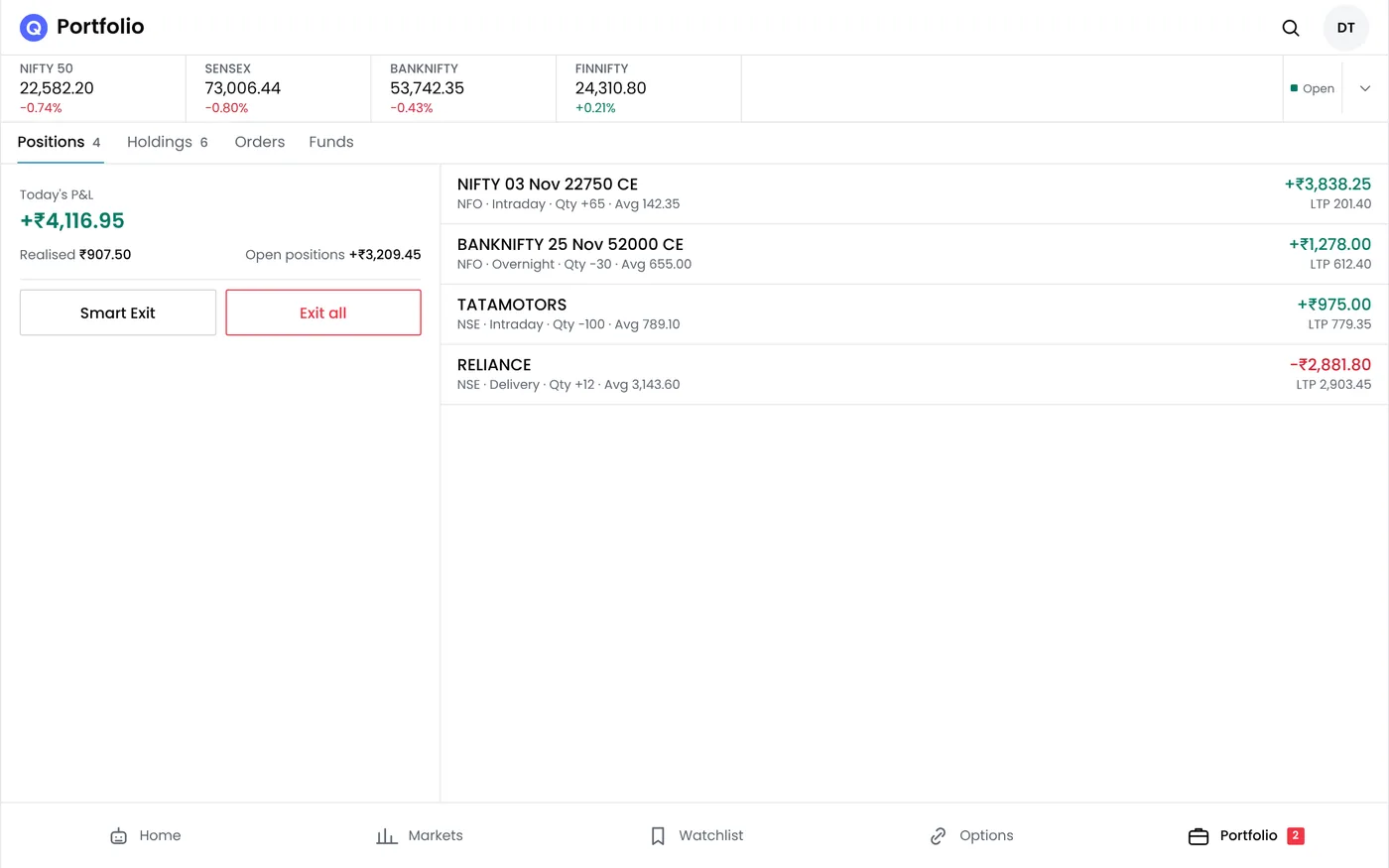
The life of an order
Every order passes the same steps. QuantPower sends it to your broker through the broker's API. The broker's risk system checks margin, price, quantity and order rate. The exchange then accepts it into its order book, where it waits until it fills, is changed or is cancelled. A failure at any step ends the order there, and its rejection reason shows where it stopped.
Order status and what you can do
| Status | What it means | What you can do |
|---|---|---|
| Open | Waiting in the exchange's book at your price | Wait, change the price or quantity, or cancel |
| Trigger pending | A stop-loss order waiting for its trigger price | Move the trigger, or cancel it if you exit another way |
| Partly filled | Some quantity has traded and the rest is open | Wait, change the rest, or cancel it |
| Complete | The full quantity has traded | Manage the position that resulted |
| Cancelled | Withdrawn by you, a bot, the broker or the exchange | Check why, if you did not cancel it |
| Rejected | Refused before it reached the market | Read the reason and fix the cause before resending |
Changing and cancelling orders
You can change the price, trigger price or quantity of an order that is open or waiting for its trigger. A complete, cancelled or rejected order cannot be changed; you place a new one instead.
- A price change costs queue position. Orders at the same price fill in time order, so a changed order joins the back of the queue at its new price.
- Changes are limited. Each change is a separate request to your broker, and brokers can cap how many times one order is modified.
- Cancelling stops only the unfilled part. Anything already filled stays as a position.
- Cancel orphaned stops. If you exit a position by hand, cancel its pending stop-loss order. Otherwise the stop can trigger later and open a new position the other way.
Partial fills
A limit order fills only as far as there are sellers or buyers at your price or better. The rest waits.
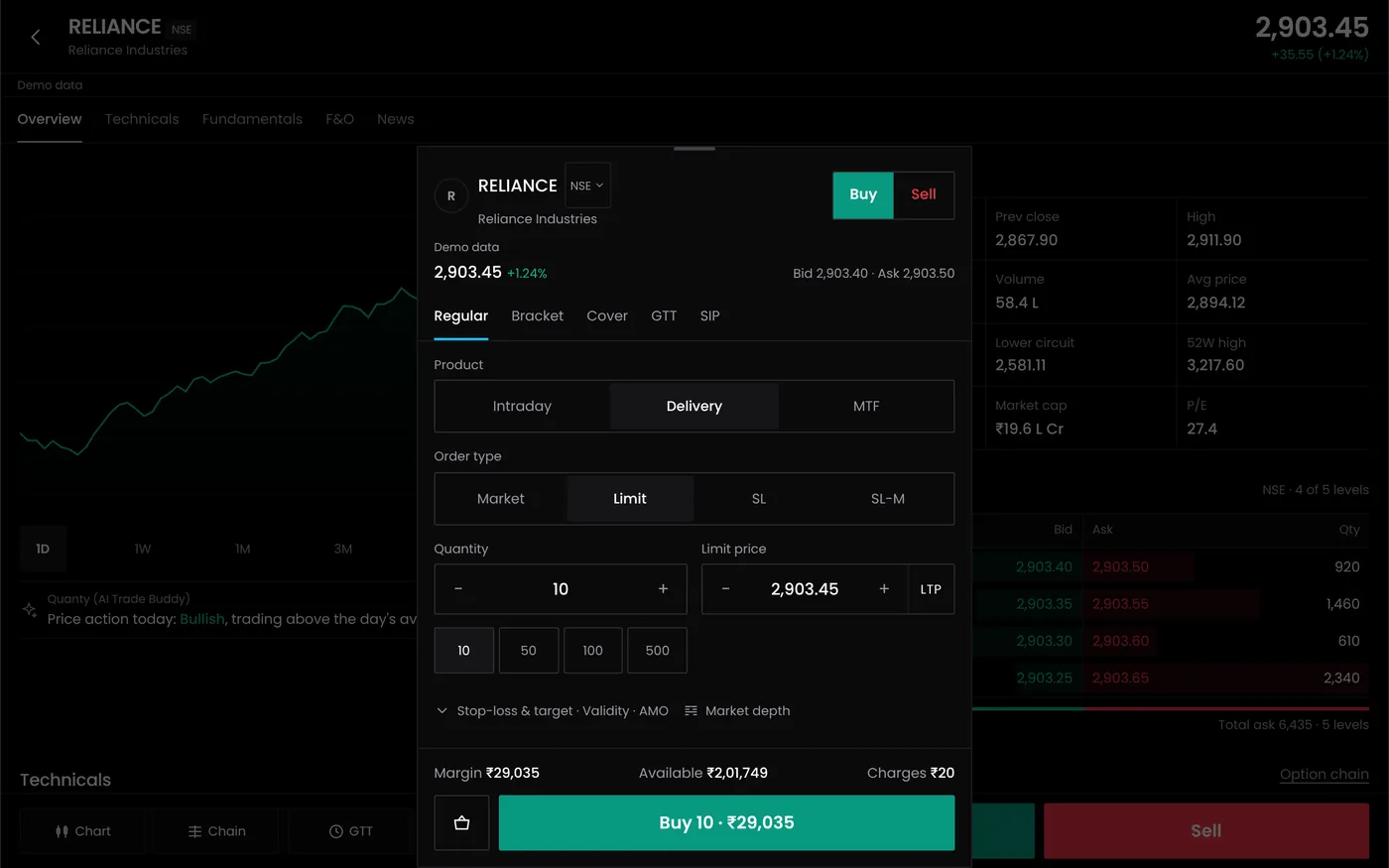
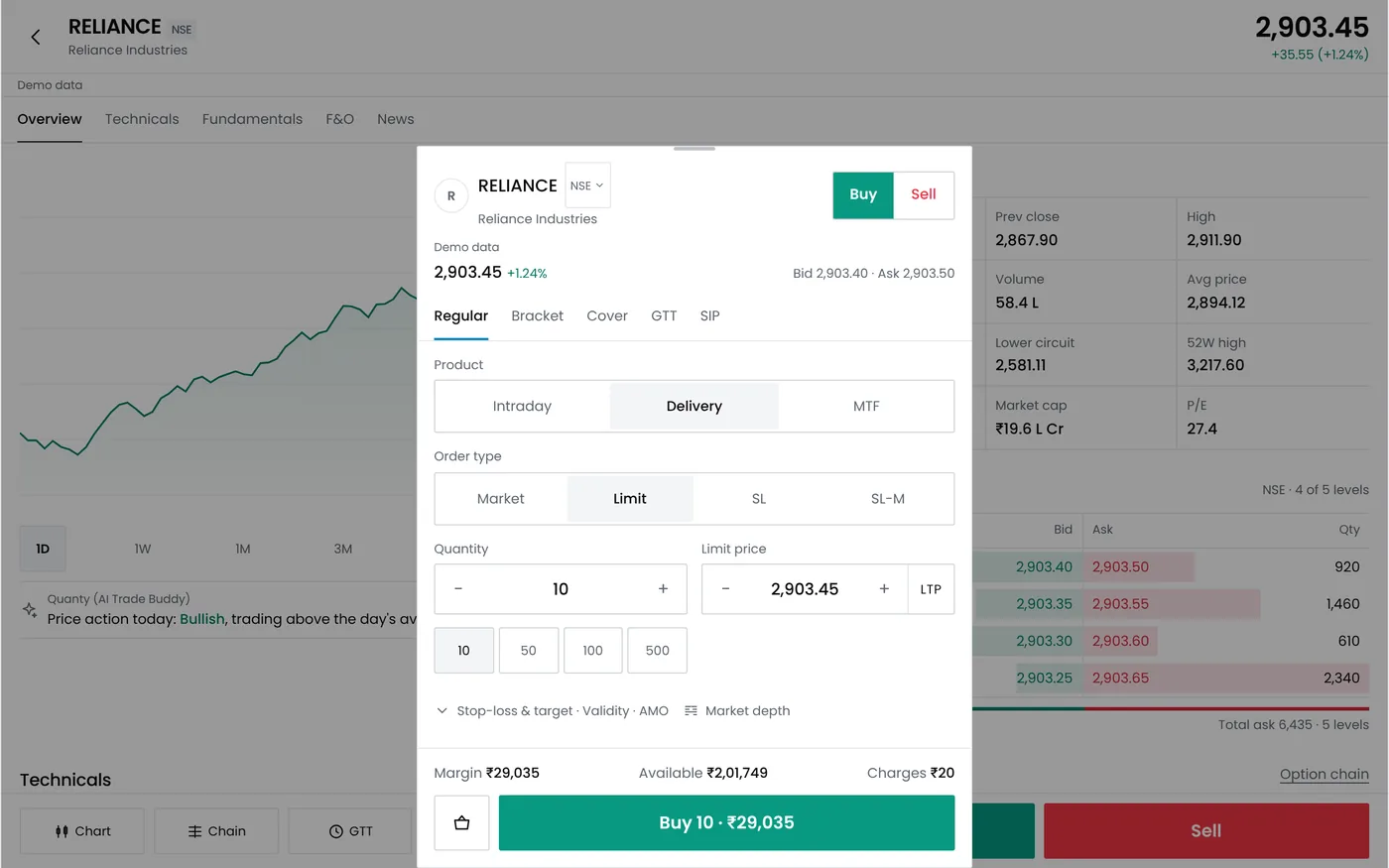
Large orders split into slices behave the same way: each slice is a separate order with its own status, and later slices can fill at different prices.
When the status is unclear
After a connection problem or a slow response, an order's status can be unclear for a moment. A timeout is not a rejection: the order may already be at the exchange. Refresh the order book and check your broker's app before you send the order again, because a second order can double the position.
Rejected orders
A rejected order never reaches the market and opens no position. The order book shows the reason sent by your broker or the exchange, which usually falls in one of a few groups: margin, price band, quantity, order type, contract, session or order rate. The guide to order rejection reasons lists each group with its fix, including what to do when one leg of a multi-leg strategy is rejected and the other fills.
Order management for manual and automated orders
Orders from your bots go through the same broker connection as your manual orders, so they appear in the same order book. Check each bot's orders against its rules: the entry condition, the orders it should send and the stop losses it should place.
A few rules keep manual and automated orders from getting in each other's way:
- Pause before you intervene. If you change or cancel a bot's order by hand, the bot may still act on the original. Pause the bot first, then make the change.
- Use limit orders in bots. Some brokers refuse market and IOC orders from algos, and others need a price protection limit on API market orders.
- Watch the request count. Each new order, change and cancellation is a request to your broker. Your own algos must stay below 10 orders a second, and brokers can set lower limits of their own.
- Keep bots off contracts you trade by hand, or a manual exit may leave a bot managing a position that no longer exists.
Checking fills against your plan
Compare each fill with the price your strategy expected. The difference, multiplied by the quantity, is your slippage. A few rupees a trade looks small, but over hundreds of trades it decides whether a strategy that worked in a backtest still works live. The slippage calculator turns these differences into a cost per trade that you can add to your backtests.
An end-of-day order check
- No order is left open that you meant to fill or cancel.
- No stop-loss order is pending for a position you have already closed.
- Every rejection is understood, and its cause is fixed in the strategy.
- Bot orders match their rules: entry time, strikes and quantity.
- Fills are close to plan, with any large slippage noted for review.
Day orders that have not filled expire when the session ends, but a filled part stays as a position until you close it.
Plans
The QuantPower Standard plan is free during the Beta (₹299/month after); Professional is ₹499/month and Ultimate ₹999/month, GST extra. See pricing.
Related guides
- Live trading terminal: charts, order entry, orders and positions on one screen
- Order types: limit, market, stop-loss and iceberg orders explained
- Order rejection reasons: each rejection and its fix
- Iceberg orders: splitting a large order into slices
- Algo trading risks: duplicate orders, rejections and other operational risks
Start your free trial
Connect your broker, build a strategy and test it on paper before a single live order goes out.
Frequently asked questions
Can I change an order after placing it?
Yes, while it is open or waiting for its trigger. You can change its price, trigger or quantity, or cancel the unfilled part. Filled quantity cannot be undone; you close it with a new order.
Why is my order still open when the price has traded?
A limit order fills at your price only after the orders ahead of it at that price have filled. A trade at your price on the screen means someone traded there, not that your order reached the front of the queue.
What happens to unfilled orders at the close?
Day orders that have not filled expire when the session ends. Any quantity that did fill stays as a position, so check positions as well as orders before the close.
Why did my stop-loss order trigger but not fill?
An SL order becomes a limit order once its trigger is hit. If the price jumps past the limit, the order waits unfilled. Leave a buffer between the trigger and the limit, and act at once if a triggered stop shows as open.
Are orders placed in QuantPower also in my broker's order book?
Yes. Every order is placed in your broker account, so it also appears in your broker's app, where you can match it by order ID.
Sources
- NSE, equity market trading system: order matching and modification (nseindia.com)
- SEBI, circular on safer participation of retail investors in algorithmic trading, 4 February 2025 (sebi.gov.in)
- Upstox, regulatory changes for API and algo trading (checked 20 October 2026)
- Zerodha, Kite Connect orders API documentation (kite.trade) (checked 18 October 2026)
- QuantPower plans and features as listed on quantpower.tech (checked 20 October 2026)