
Before you start
- A connected broker with today's login done. Positions are held with your broker; QuantPower shows them and can place orders for them.
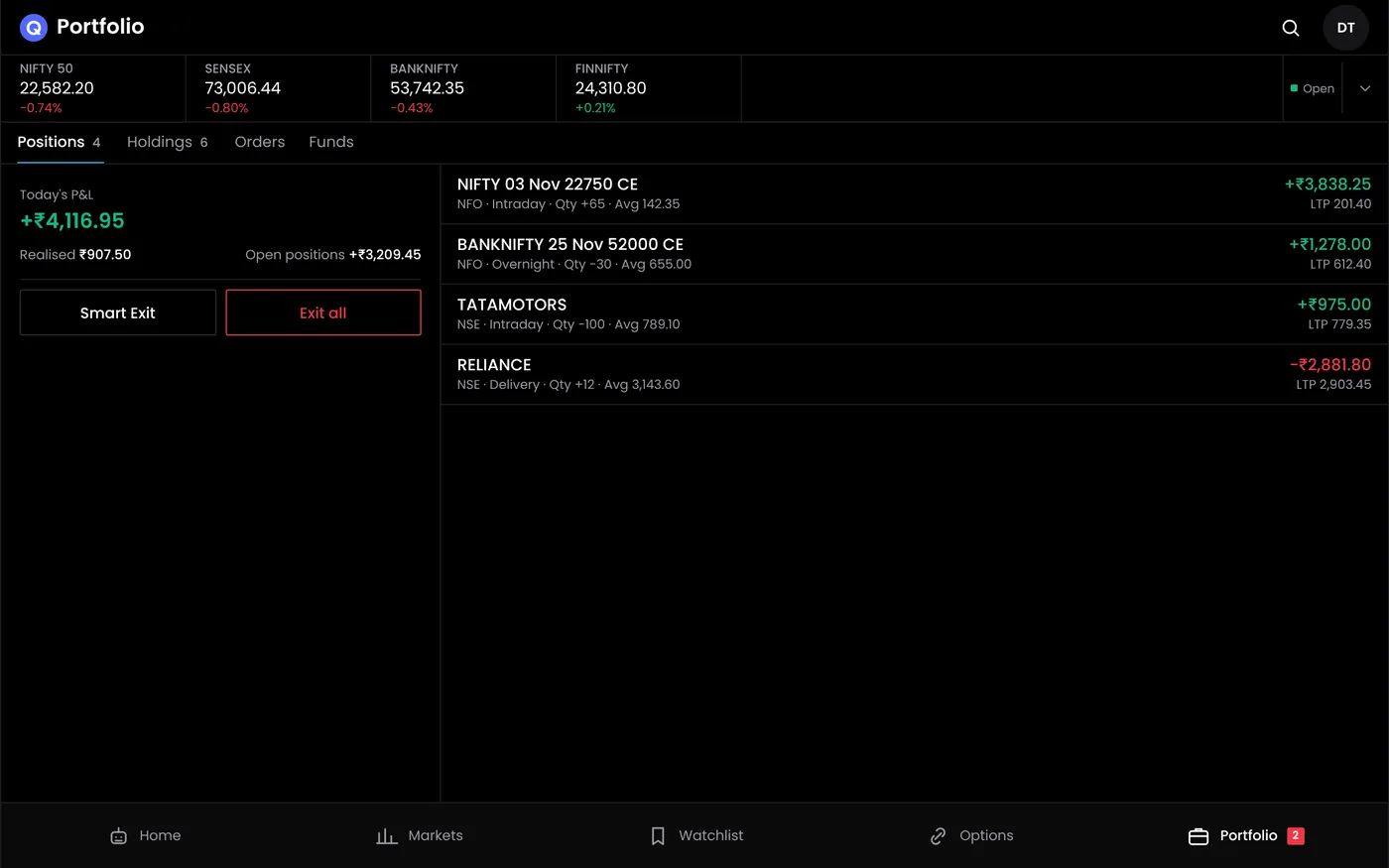
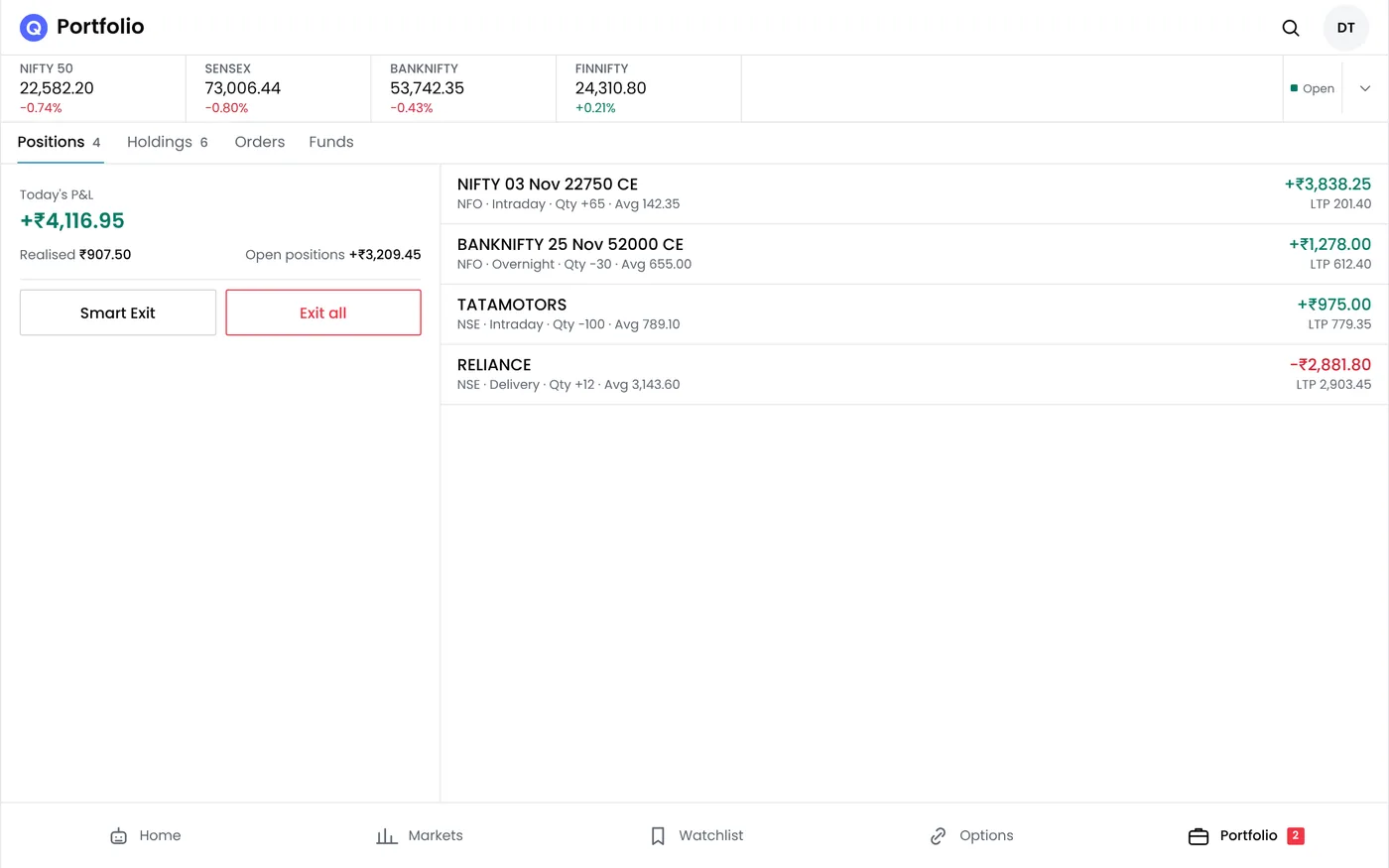
Step 1: Read the summary
| Figure | Meaning |
|---|---|
| Open positions | Positions not yet closed today |
| Day P&L | Profit or loss for the day across all positions |
| From algo bots | The part of the day's P&L from automated strategies |
| MTM loss limit | Your daily MTM stop loss, if set |
Step 2: Read each position
| Column | What it shows |
|---|---|
| Instrument | The contract, such as NIFTY 20 OCT 25000 CE |
| Source | The algo bot that opened it, or Manual |
| Product | NRML (carry forward) or MIS (intraday) |
| Qty | Units held. A minus sign means a short position |
| Avg and LTP | Your average price and the last traded price |
| P&L | Running profit or loss on the position |
For a short option, P&L rises as the premium falls. In the example, the 25,000 call was sold at 280.50 and trades at 262.40, a gain of 18.10 a unit, or ₹1,176.50 on 65 units.
Step 3: Add a stop loss to a position
Select Add SL on the position, enter the trigger price and the limit price, and confirm. For options on NSE, use an SL order with a limit price, because SL-M orders are not accepted in options. Leave a gap between trigger and limit so the order can fill in a fast market.
Step 4: Exit positions
- Exit closes one position at the current price.
- Exit selected closes the positions you ticked, such as both legs of a straddle together.
- Exit all closes every open position.
When exiting a hedged options position, close the short legs before the long ones. Closing the hedge first can leave a naked short option and raise the margin needed.
Step 5: Check today's orders
The orders list shows every order with its time, source and status: complete, open, trigger pending, rejected or cancelled. A stop loss waiting for its trigger shows as trigger pending. Our order management page explains each status.
Step 6: Check your positions match the broker
At least once a day, compare the positions in QuantPower with your broker's app. They should match. If they do not, refresh, then check for manual trades placed directly with the broker or orders that filled in parts.
Positions from bots and manual trades
Each bot manages the positions it opened. If you exit or change a bot's position by hand, the bot may still try to manage it, for example by sending an exit order for a leg you already closed. Pause the bot first, then manage the position by hand. See pausing automation.
Common problems
| Problem | What to do |
|---|---|
| A position is missing | Refresh, then check your broker's app. A rejected entry never becomes a position |
| Quantity differs from the bot's setting | An order filled in parts, or a manual trade changed it |
| Exit rejected | Check margin and order rules. See order rejections |
| P&L differs from the broker | Brokers calculate day P&L slightly differently for carried positions |
Next steps
- Pause trading automation
- Set an MTM stop loss
- Read more about position monitoring
Frequently asked questions
Can I see positions from all my strategies in one place?
Yes. The positions screen shows every position, with the source of each.
Is position monitoring available in the app?
Yes, in the Android app and on the web platform.
What happens to my positions if QuantPower is unavailable?
They stay with your broker. Manage them in your broker's app until QuantPower is back. The status page shows any known problems.