
Before you start
- A Professional or Ultimate plan. The QuantPower Standard plan is free during the Beta (₹299/month after); Professional is ₹499/month and Ultimate ₹999/month, GST extra. See pricing.
- A tested strategy. Backtest it and paper trade it first.
- A connected broker with today's login done, and enough margin for the position.
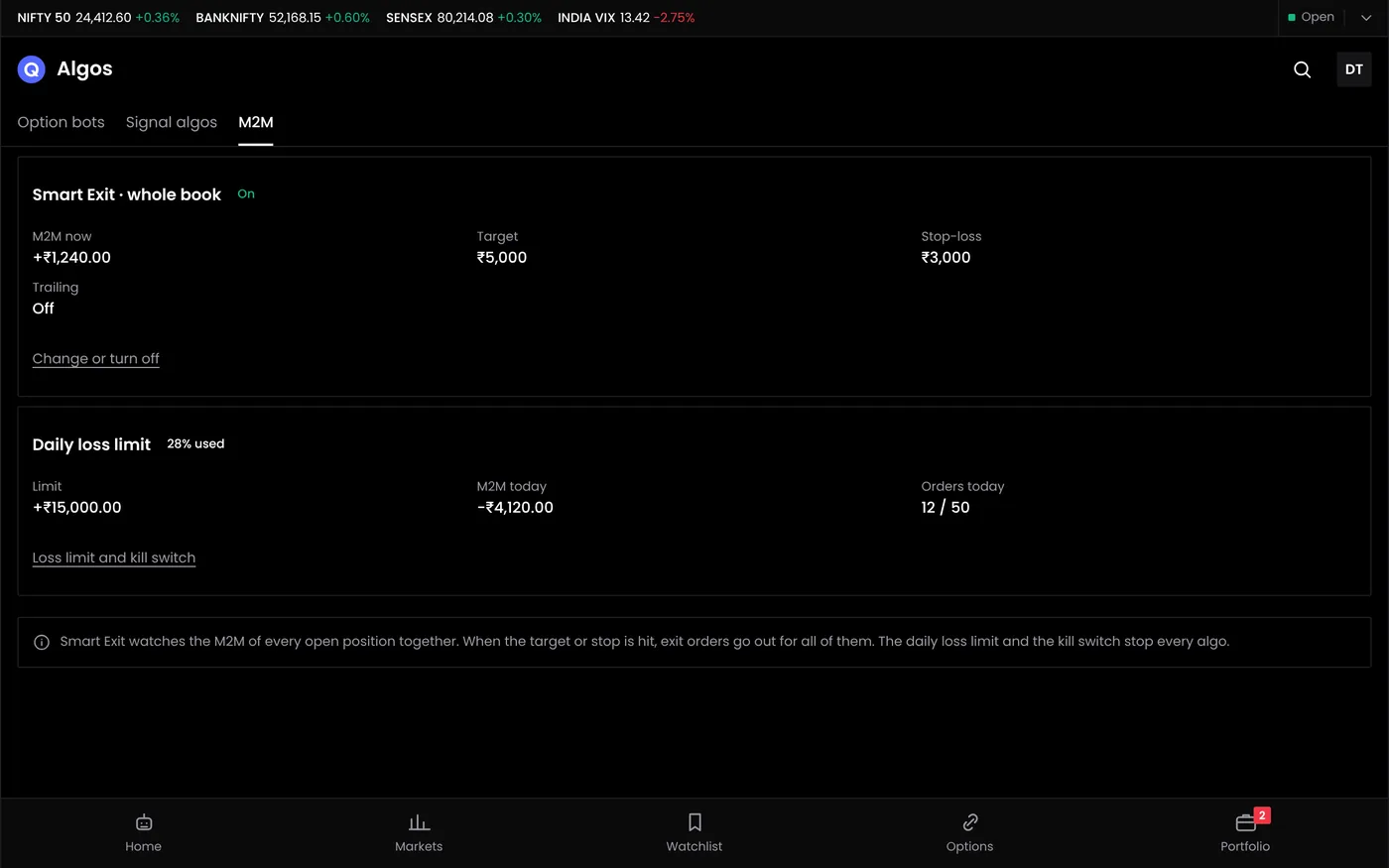
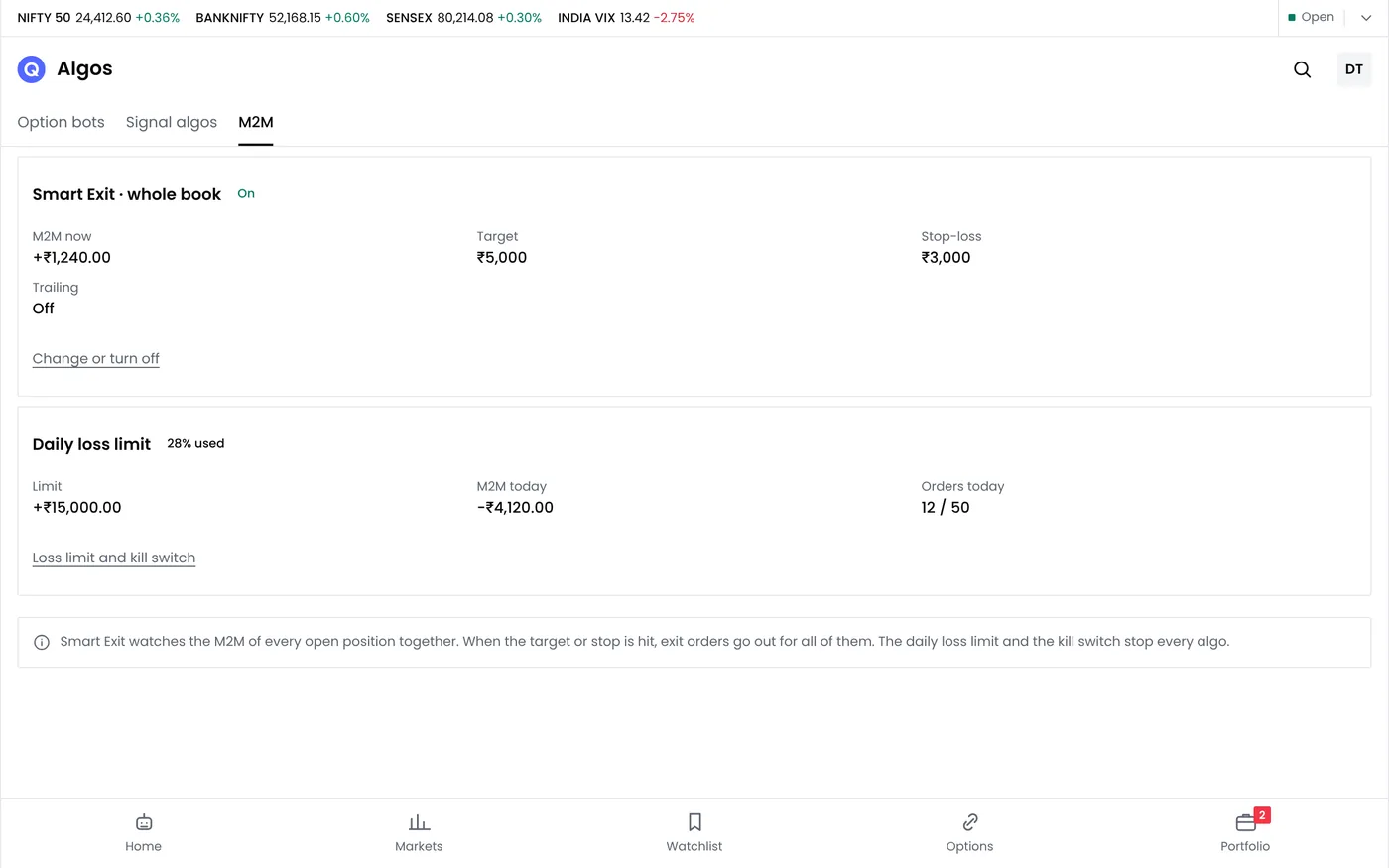
- An MTM stop loss for the account. See the MTM stop loss tutorial.
Two ways to run a bot
- Your own strategy through the bridge: with any supported broker, QuantPower sends your strategy's orders through the broker's official API. If you run your own strategies through the broker's API, the broker may ask you to register a static IP.
- A ready-made strategy: Ready-made strategy templates, such as straddles and iron flies, load into the strategy builder; you edit and run them as your own strategy.
Step 1: Open the deploy window
- Open Algo bots.
- Choose the strategy and select Deploy.
Step 2: Fill in the settings
| Setting | Example | What to check |
|---|---|---|
| Broker account | Zerodha · AB1234 | The account that will hold the positions |
| Lots | 1 lot (65) | Start with the size you paper traded |
| Expiry | Current week | Nifty weekly options expire on Tuesdays |
| Entry time | 09:20 | After the opening minutes, when spreads are widest |
| Exit time | 15:15 | Before the close, so intraday positions do not carry over |
| Strategy stop loss | ₹4,000 | The most this bot may lose in a day |
| Strategy target | ₹3,000 | Optional. Exits once the bot's profit reaches it |
| Re-entry | Off | Whether the bot trades again after an exit |
| Run on | Monday to Friday | Leave out days you do not want it to trade, such as expiry day |
Step 3: Choose the mode
- Paper runs the bot with virtual money.
- Live places real orders in your broker account.
Select Live only after paper results match your backtest.
Step 4: Confirm and deploy
Tick the confirmation that the bot will place orders in your broker account automatically, then select Deploy bot. The bot appears in the list with its status.
Step 5: Check the first run
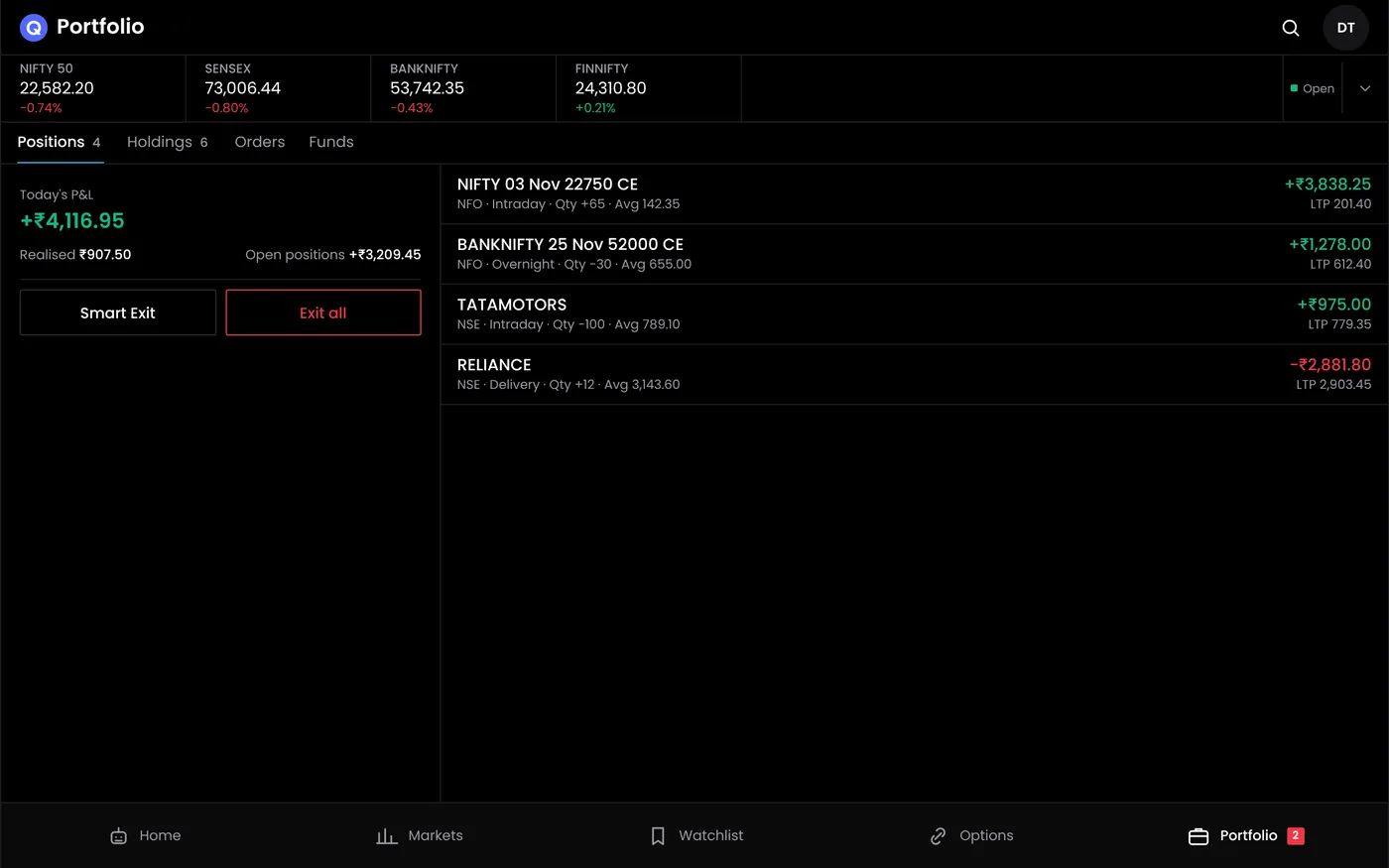
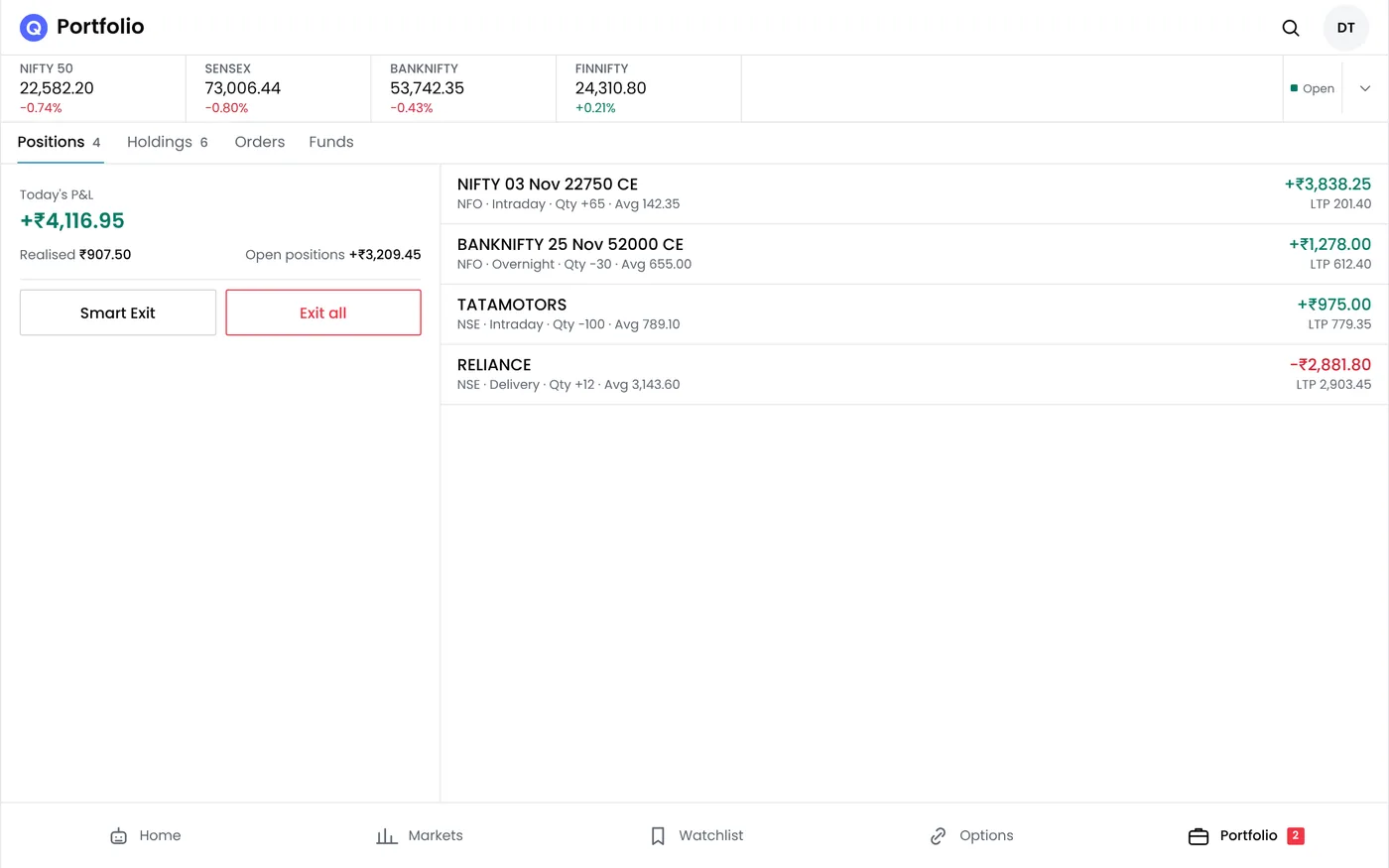
On the bot's first live day:
- Before entry: the status shows that the bot is waiting for its entry time.
- At entry: the activity log shows each order. Compare the order IDs with your broker's order book.
- After entry: check that stop-loss orders were placed at the right prices.
- At exit: check that every leg closed.
| Status | Meaning |
|---|---|
| Waiting | Deployed, and waiting for the entry time or conditions |
| Running | In a position, or watching for entries during its window |
| Paused | Stopped from taking new entries. See pausing automation |
Running several bots
When several bots trade at once, their losses add up. The account's MTM stop loss watches the combined P&L, and each bot's own stop loss limits that bot. Use both. Check that the combined margin of all bots fits your account, or later entries may be rejected.
Common problems
| Problem | Likely cause | What to do |
|---|---|---|
| The bot did not enter | Broker session expired, conditions not met or a paused status | Log in to your broker, then check the bot's conditions and status |
| One leg filled, the other rejected | Margin or an order rule | Exit or hedge the open leg, then fix the cause. See order rejections |
| Orders appear twice | The bot was deployed twice | Check the bot list and the order book before deploying again |
| Wrong quantity | Lots and units confused | Quantity is in lots. 1 Nifty lot is 65 units |
Next steps
Frequently asked questions
Do I need to keep my computer on?
Strategies run on broker infrastructure or the client’s own static IP setup, not Wisdom Tree Ventures servers. The required host and broker session must remain available; check your connection before relying on unattended operation.
Can I trade by hand while a bot runs?
Yes, but avoid the contracts the bot manages. Manual trades in the same contracts can cause wrong exits.
How many bots can I run?
The Standard plan is free during the Beta; see pricing for each plan's daily allowances.