
Before you start
- A trading account with any of the 100+ brokers QuantPower connects, with F&O enabled if you trade options or futures.
- Your broker login and two-factor code, because you log in on the broker's own page.
- A laptop or desktop with Chrome, Edge, Firefox or Safari. Setup is easier on a large screen; the Android app is good for checking positions later.
- Zerodha users only: a Kite Connect subscription from Zerodha (₹500 a month) for live prices. Our Zerodha guide explains why.
Step 1: Log in or start a free trial
- Start a free trial from the home page, or log in at quantpower.tech/login if you already have an account.
- Choose a plan when you are ready. The QuantPower Standard plan is free during the Beta (₹299/month after); Professional is ₹499/month and Ultimate ₹999/month, GST extra. See pricing.
Step 2: Connect your broker
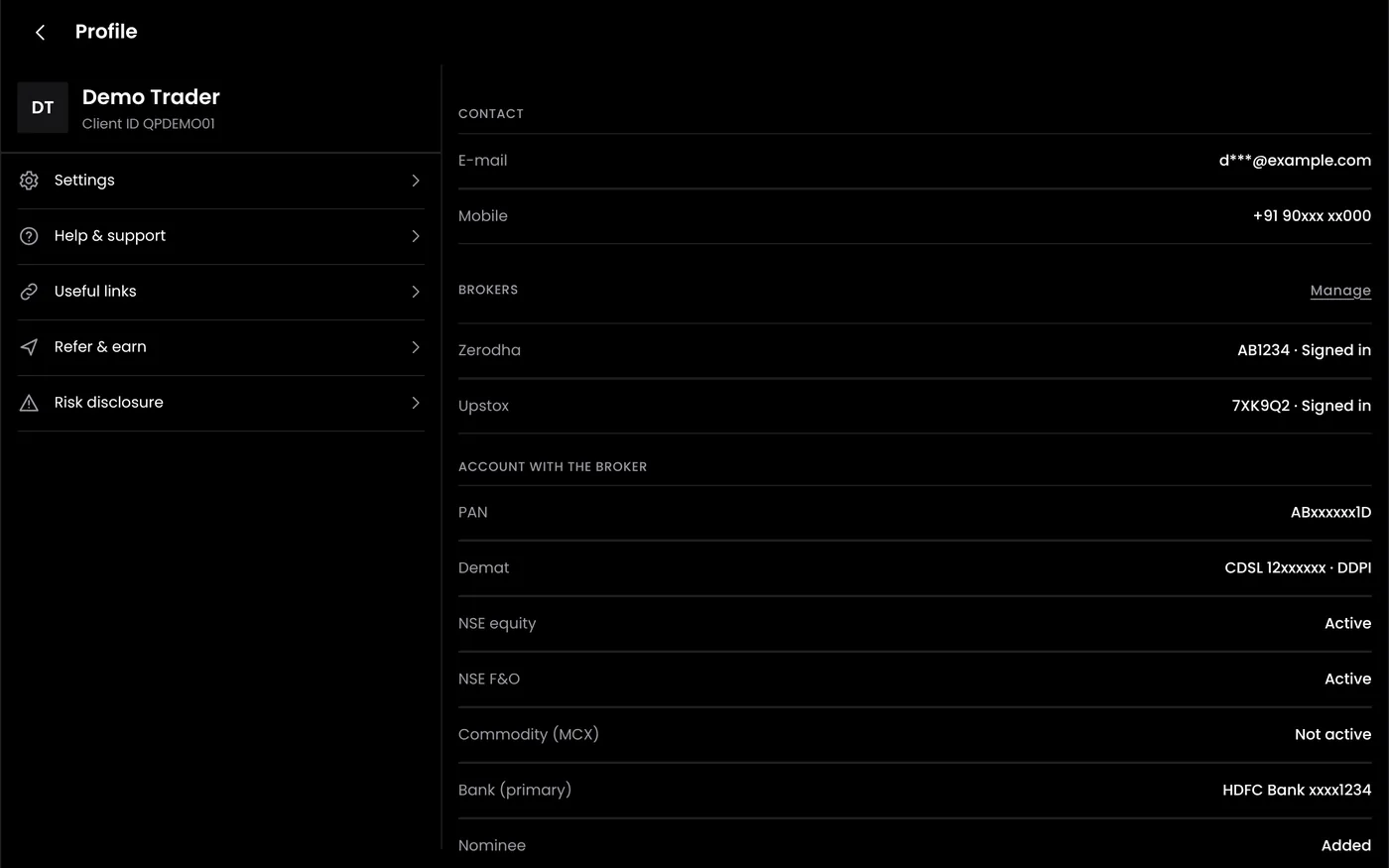
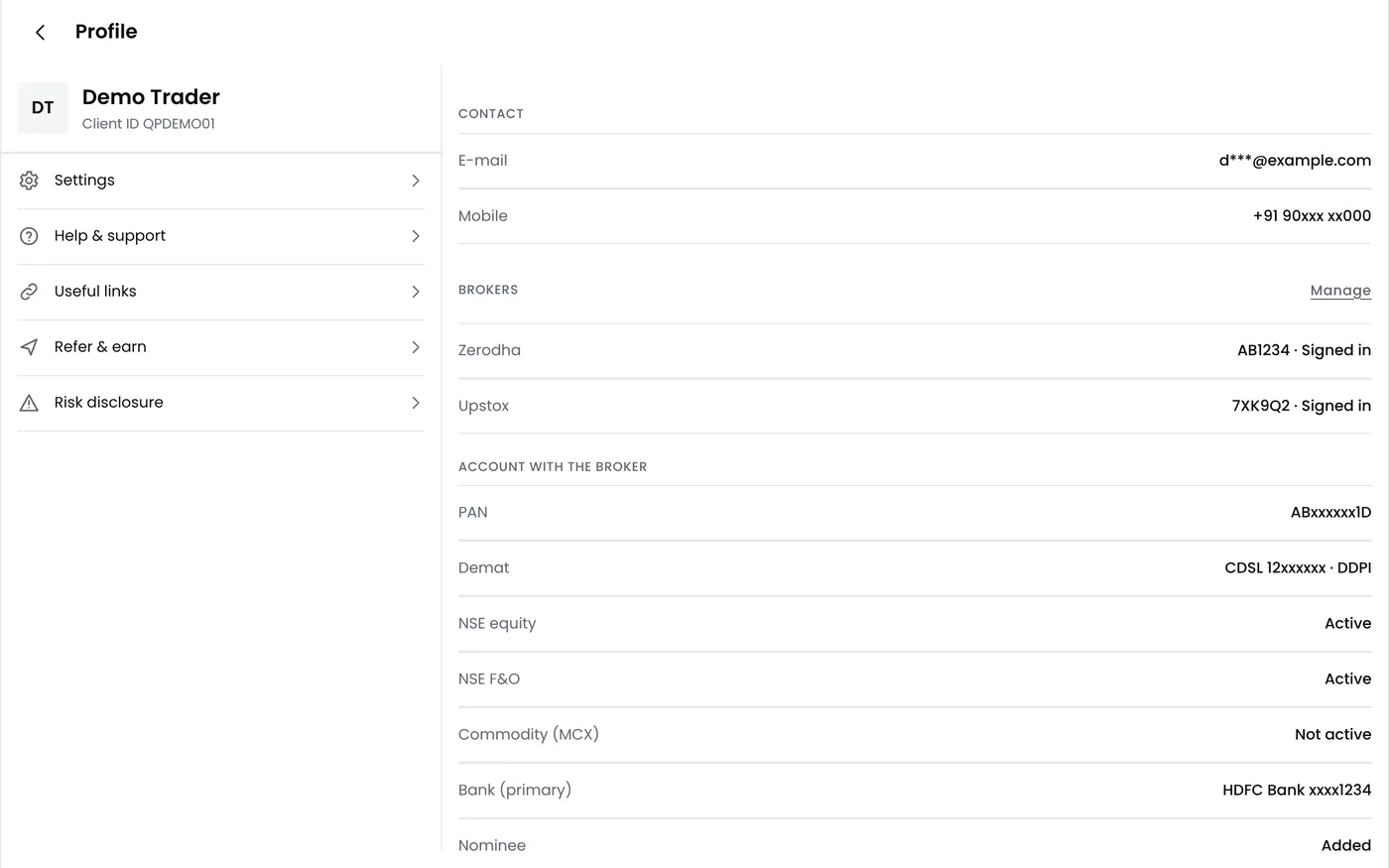
- Open Broker accounts from the setup checklist.
- Choose your broker and select Connect.
- Your broker's own login page opens. Enter your client ID, password and two-factor code there.
- Approve access if the broker asks. You return to QuantPower.
- Check that your funds and any open positions appear.
QuantPower keeps only the session token your broker issues after you log in. It never sees your password or two-factor codes. Our guide to broker connection security explains what the connection can and cannot do, and broker connection requirements lists API charges by broker.
Under SEBI's rules, brokers end every API session before the next trading day. You will log in to your broker from QuantPower each morning before your strategies are due to trade.
Step 3: Learn the layout
| Area | What it is for |
|---|---|
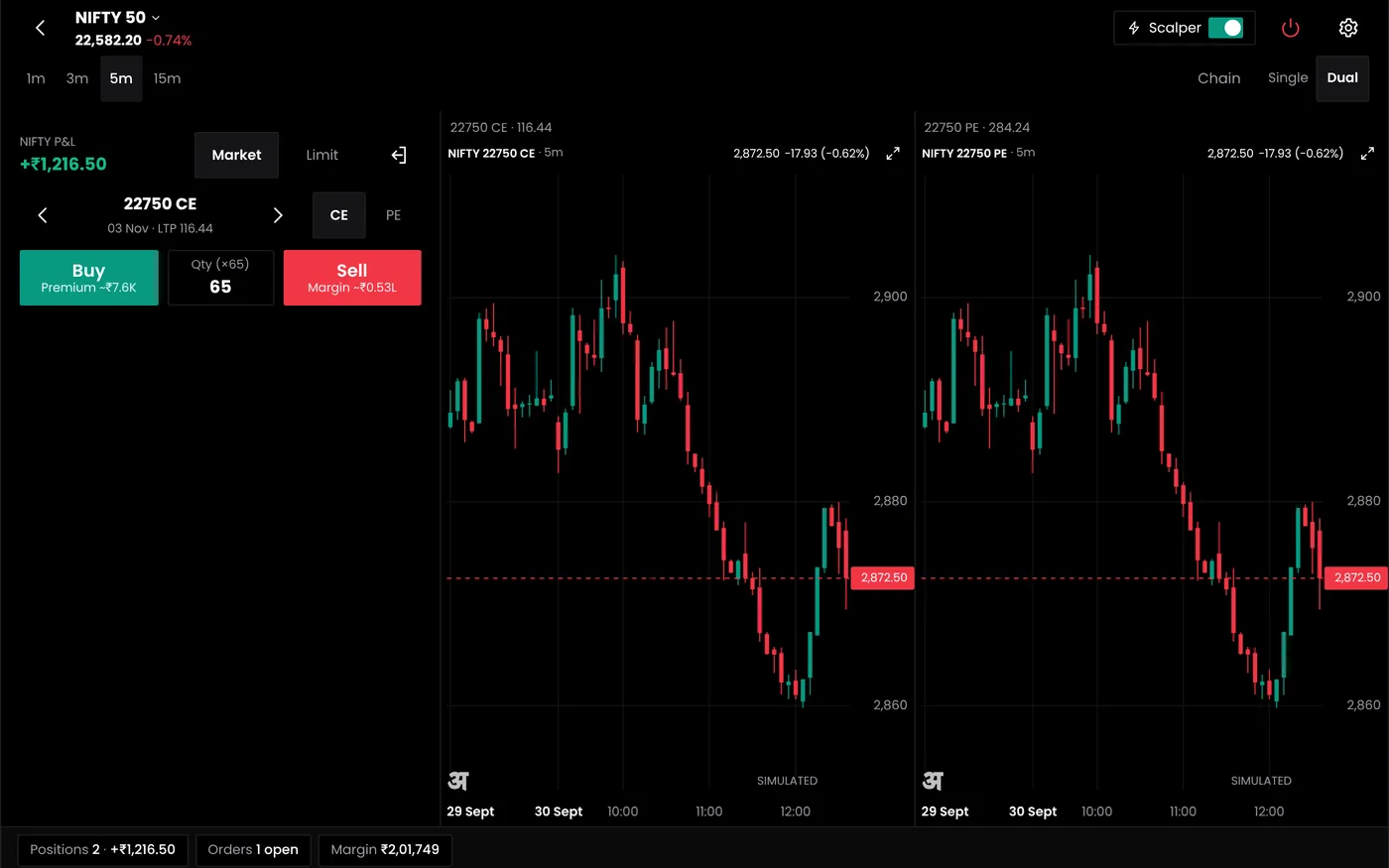
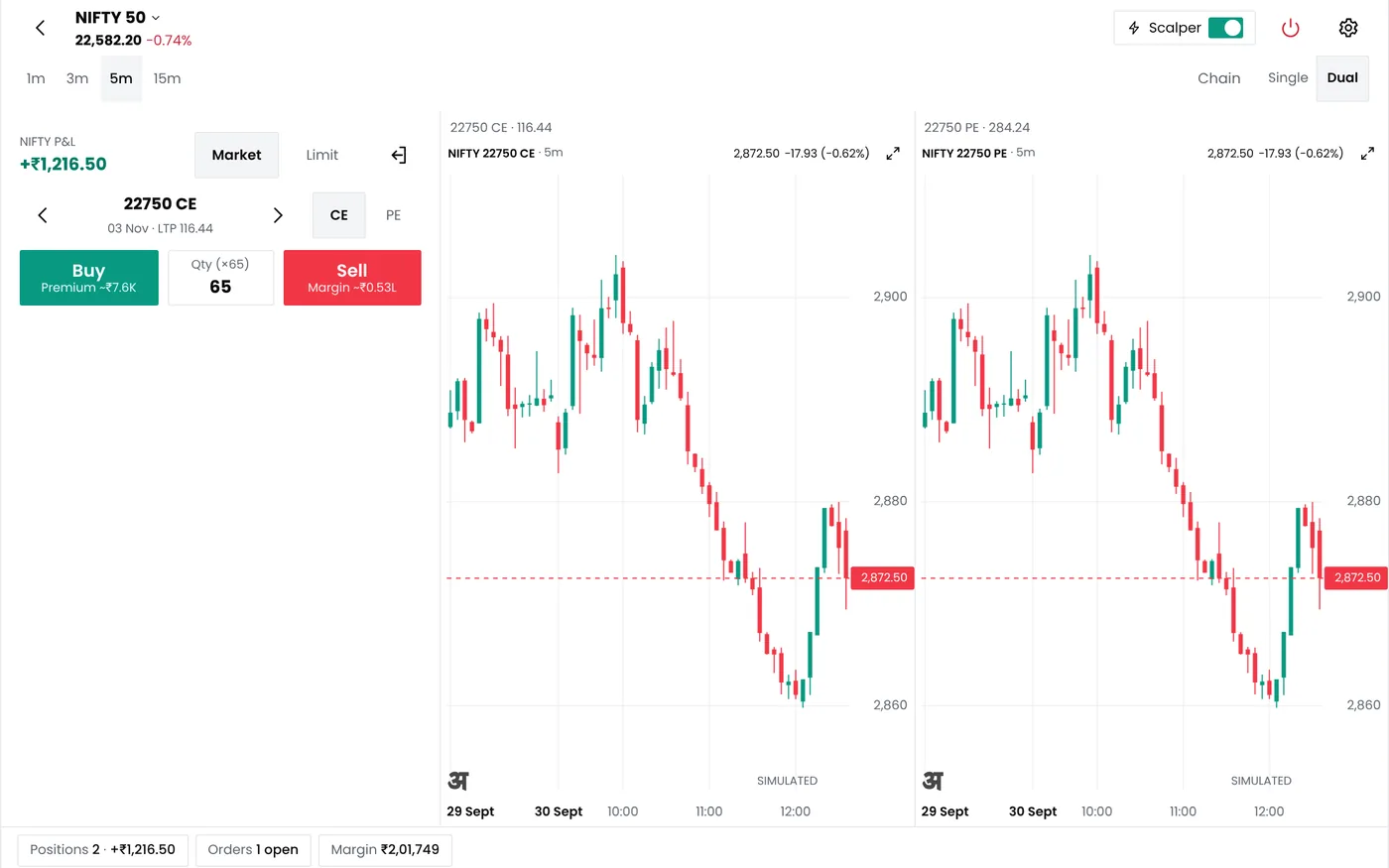
| Terminal | Charts, order entry, the order book and positions on one screen. See the live trading terminal |
| Option chain | Prices, open interest, IV and Greeks for every strike. See options analytics |
| Strategy builder | Options and indicator strategies without code. See the strategy builder |
| Algo bots | Strategies that run automatically, signal trading and the MTM stop loss |
| Positions | Open positions, live P&L and today's orders. See position monitoring |
Step 4: Set a daily loss limit
Set an MTM stop loss before you automate anything. It squares off positions when the day's combined loss reaches your limit, so several losing trades cannot add up unnoticed. Many traders start with 1% to 3% of their trading capital. The MTM stop loss tutorial shows each setting.
Step 5: Choose what to try first
- Analyse by hand: read open interest and IV in the option chain. Start with the option chain tutorial.
- Build and test your own strategy: create a strategy, backtest it, then paper trade it. With any supported broker, QuantPower works as a bridge that sends your strategy's orders through the broker's official API.
- Use a ready-made strategy: Ready-made strategy templates, such as straddles and iron flies, load into the strategy builder; you edit and run them as your own strategy.
Step 6: Install the app
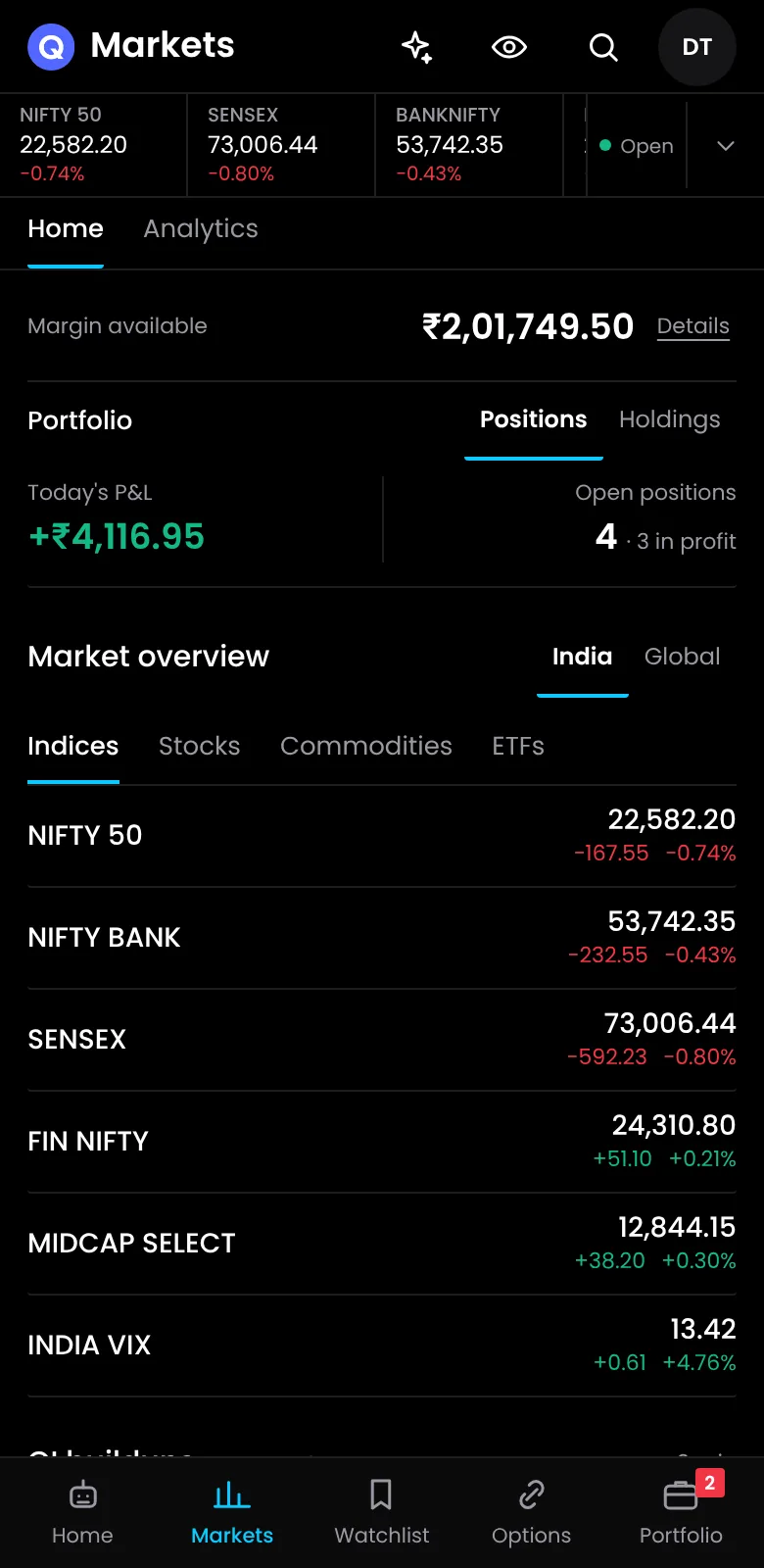
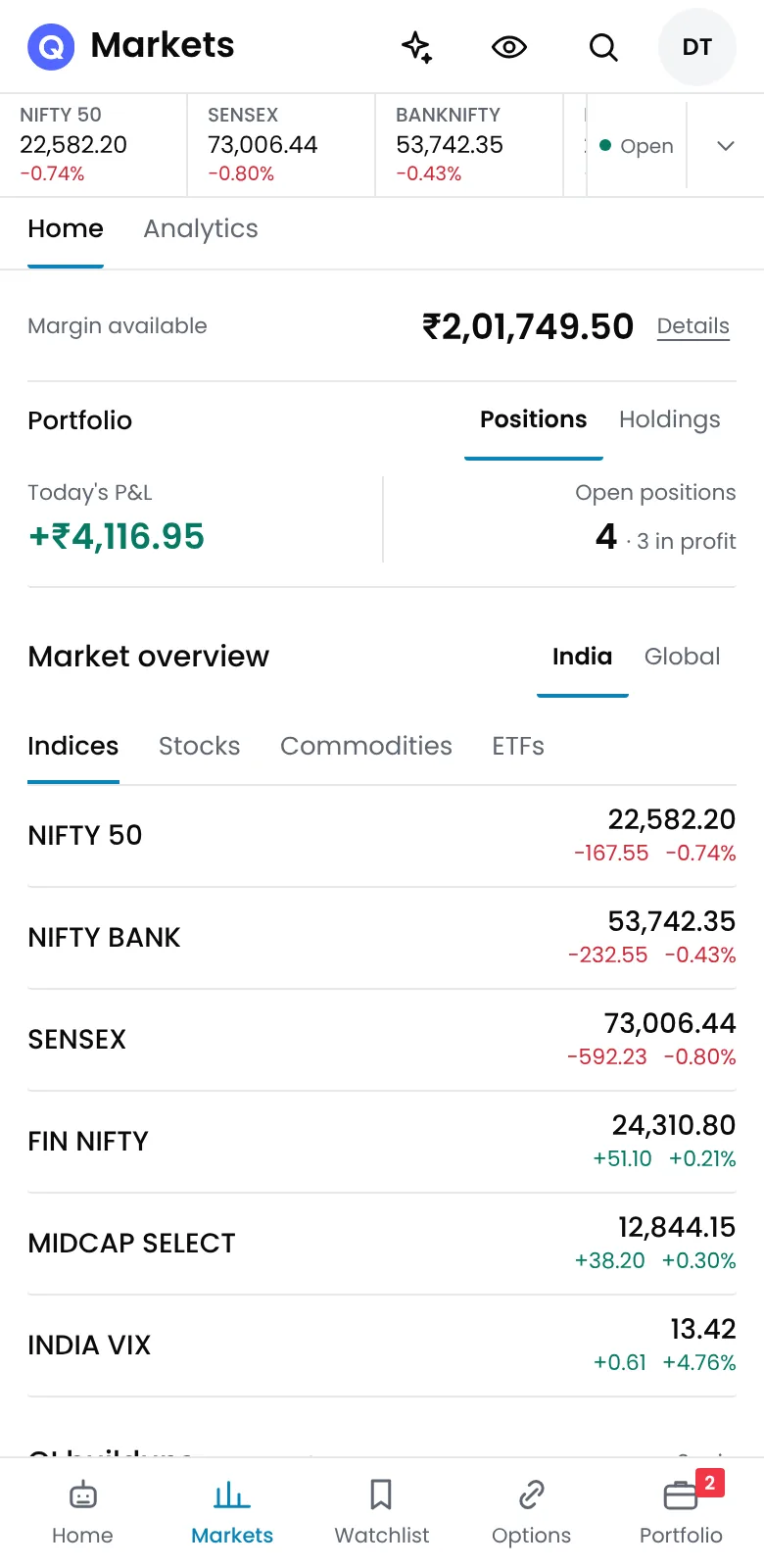
Download QuantPower from Google Play to check positions and bots on your phone. On iPhone and iPad, use the web platform in Safari. The Standard plan is free during the Beta; see pricing for each plan's daily allowances. See download.
A daily routine
- Before 9:00: log in to your broker from QuantPower and check that your funds appear.
- 9:00 to 9:15: check which bots are scheduled and read any broker or exchange notices.
- 9:15: the normal market opens for equity and F&O.
- During the session: check orders and positions after each entry.
- Before the close: confirm that intraday positions closed as planned.
Common problems
| Problem | What to do |
|---|---|
| The broker login page does not open | Allow pop-ups for quantpower.tech, or try another browser |
| Funds show as zero after login | The login did not finish. Connect again and complete the two-factor step |
| Zerodha prices do not update | Check that your Kite Connect subscription is active |
| "Session expired" in the morning | This is normal. Log in to your broker again |
More fixes are in broker connection troubleshooting.
Next steps
Start your free trial
Connect your broker, build a strategy and test it on paper before a single live order goes out.
Frequently asked questions
Do I have to connect a broker to use QuantPower?
You need a connected broker for live prices and for any order, manual or automated. Live prices in QuantPower come from your own broker account.
Do I need to log in every day?
Yes. SEBI's framework requires brokers to end API sessions before the next trading day, so you log in to your broker each morning.
Can I connect more than one broker?
Yes, depending on your plan.
Do strategies stop if I close the browser?
Strategies run on broker infrastructure or the client’s own static IP setup, not Wisdom Tree Ventures servers. The required host and broker session must remain available; check your connection before relying on unattended operation.